
Service Accounts
You can use Censys Platform service accounts to connect third-party applications with Platform APIs without using a personal user account.
In contrast with Personal Access Tokens and Connected Apps, Platform service accounts are managed at the organization level. Service accounts have API access to the module roles you explicitly grant to them. Service accounts do not consume a seat.
Platform service accounts use the OAuth 2 standard client credetials flow. Service accounts do not consume organization user seats.
Service accounts are only available to organizations on the Censys Search or Censys Core plans.
Create a service account
To create a service account, your account must have the Platform Admin role.
-
In the Censys Platform web console, go to Organization Settings > Service Accounts.
-
Click + Create service account.
-
On the New Service Account panel, enter a name for your service account and select the module roles for it. Assign the minimum permissions necessary for the account’s scope. At least one module role is required.
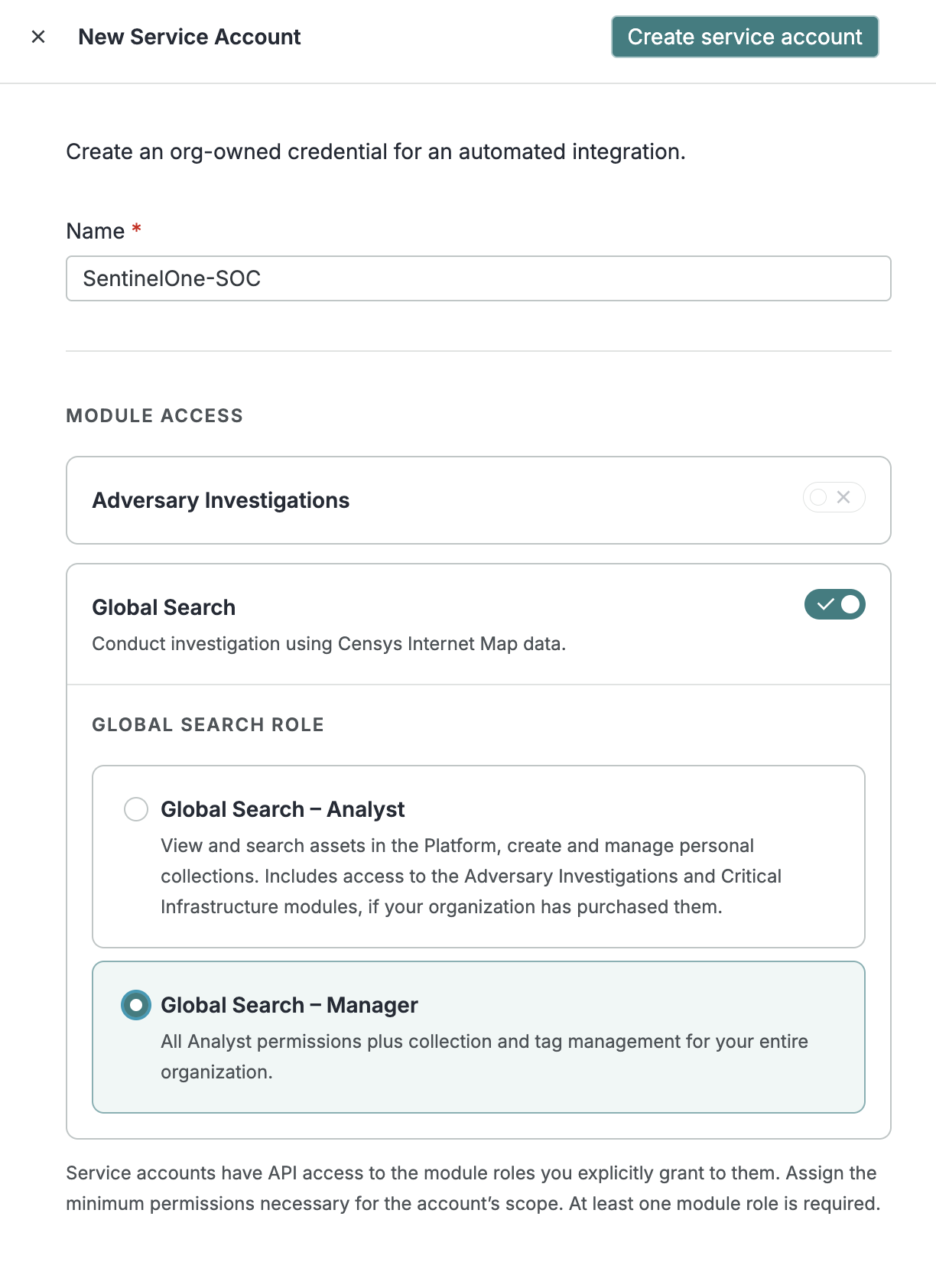
!! update screenshot for release
-
Click Create service account.
-
Copy the Client Secret and store it in a secure location. It will not be shown again.
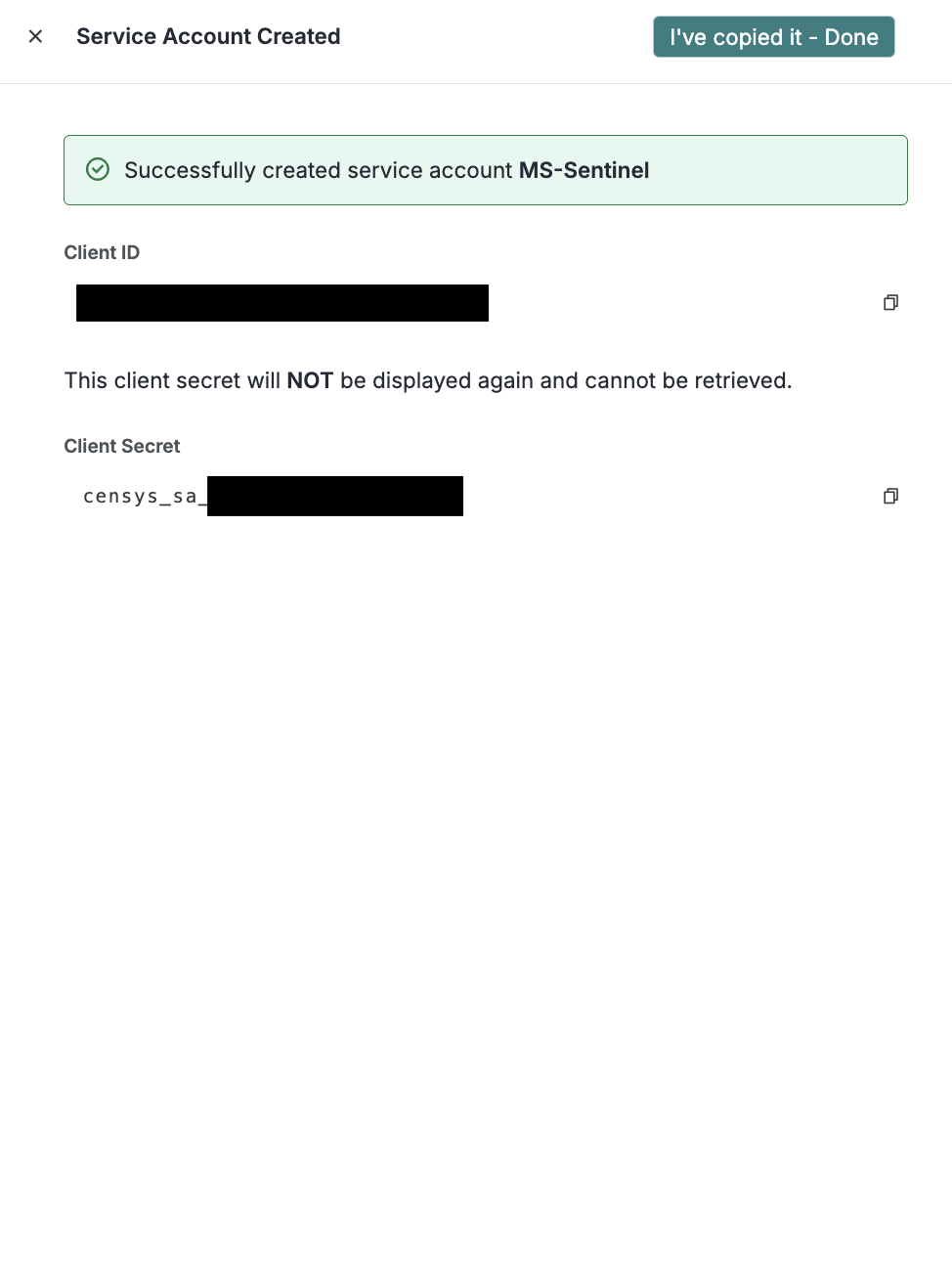
!! update screenshot for release
-
Note the Access Token URL and Client ID. These can be retrieved from the Service Accounts page at any time.
Use a service account
The configuration process for adding a service account to another app varies. Typically, when configuring an API conection, you must select OAuth as the authentication type, client credentials as the grant type, and enter your service account's client ID, client secret, and the access token URL.
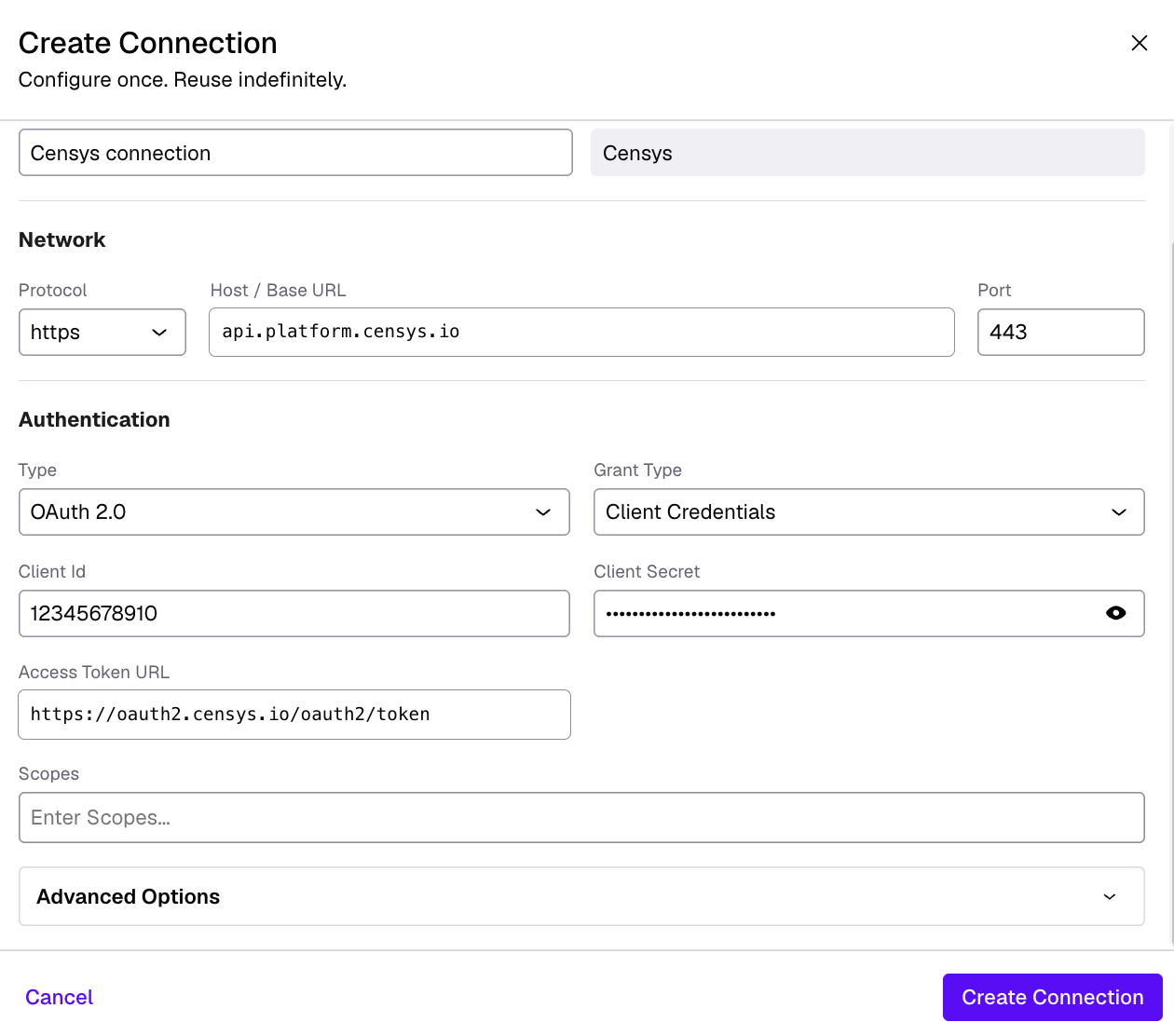
An example connection configuration for SentinelOne showing the configuration parameters to use a Platform service account.
Service account management
To manage existing sevice accounts, your account must have the Platform Admin role.
-
In the Censys Platform web console, go to Organization Settings > Service Accounts.
-
On the row for a service account, click the three-dot menu icon.
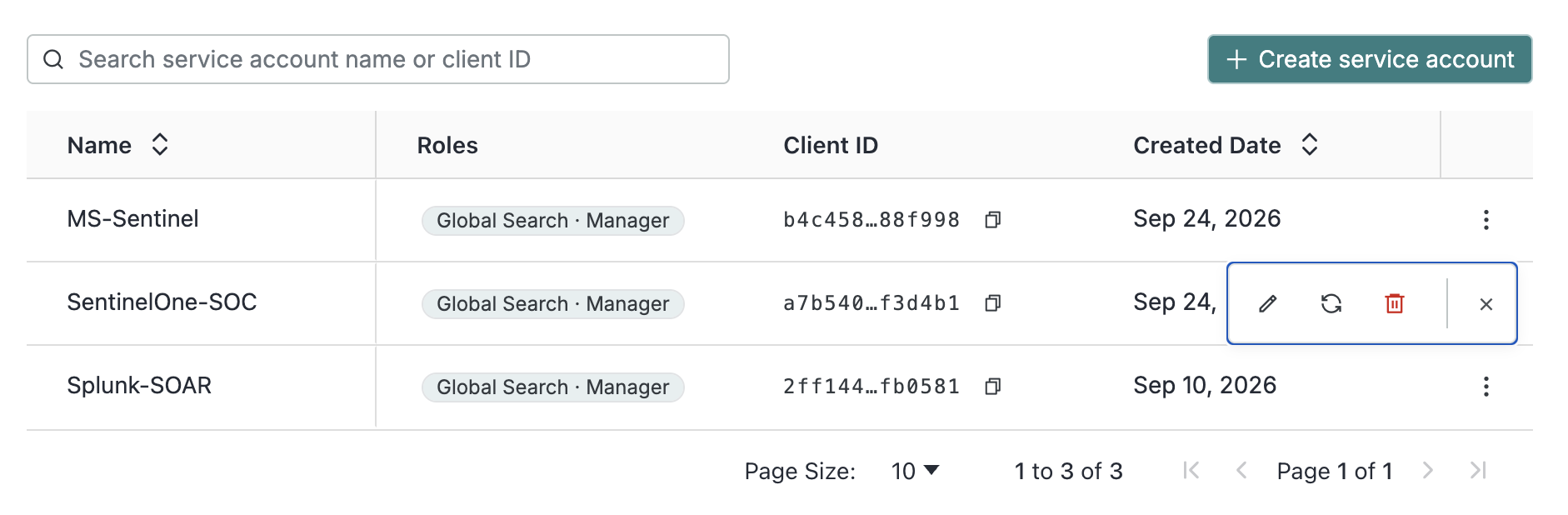
- Click the edit icon to change the account's name or module rules.
- Click the rotate icon to rotate the account's secret. Any existing configuration using the old secret will stop working. Save the new secret in a secure location.
- Click the trash icon to delete the account.
Service account activity in the audit log
All service account activity is added to the audit log.
Service account credit usage is not currently visible on the Credit Management page in the Platform web console. However, it can be retrieved via the get user credit usage API endpoint.
Updated about 2 hours ago