
ServiceNow TISC Integration
The Censys for ServiceNow Threat Intelligence Security Center (TISC) integration adds the ability to:
-
Automatically or manually enrich IPs, web properties, and certificate observables in ServiceNow TISC with Censys Platform data.
-
Initiate a Censys rescan of a host or web property.
-
Retrieve scan history for an IP address.
-
Initiate a CensEye automated pivoting job to find assets related to an IP, web property, or certificate.
Additionally, it adds a dashboard that shows all Censys actions executed using the app.
This guide walks through how to set up and use the Censys for ServiceNow TISC.
NoteMost of the Censys API calls used by this integration will deduct credits from your organization's balance. Reference the API documentation for more information on credit costs.
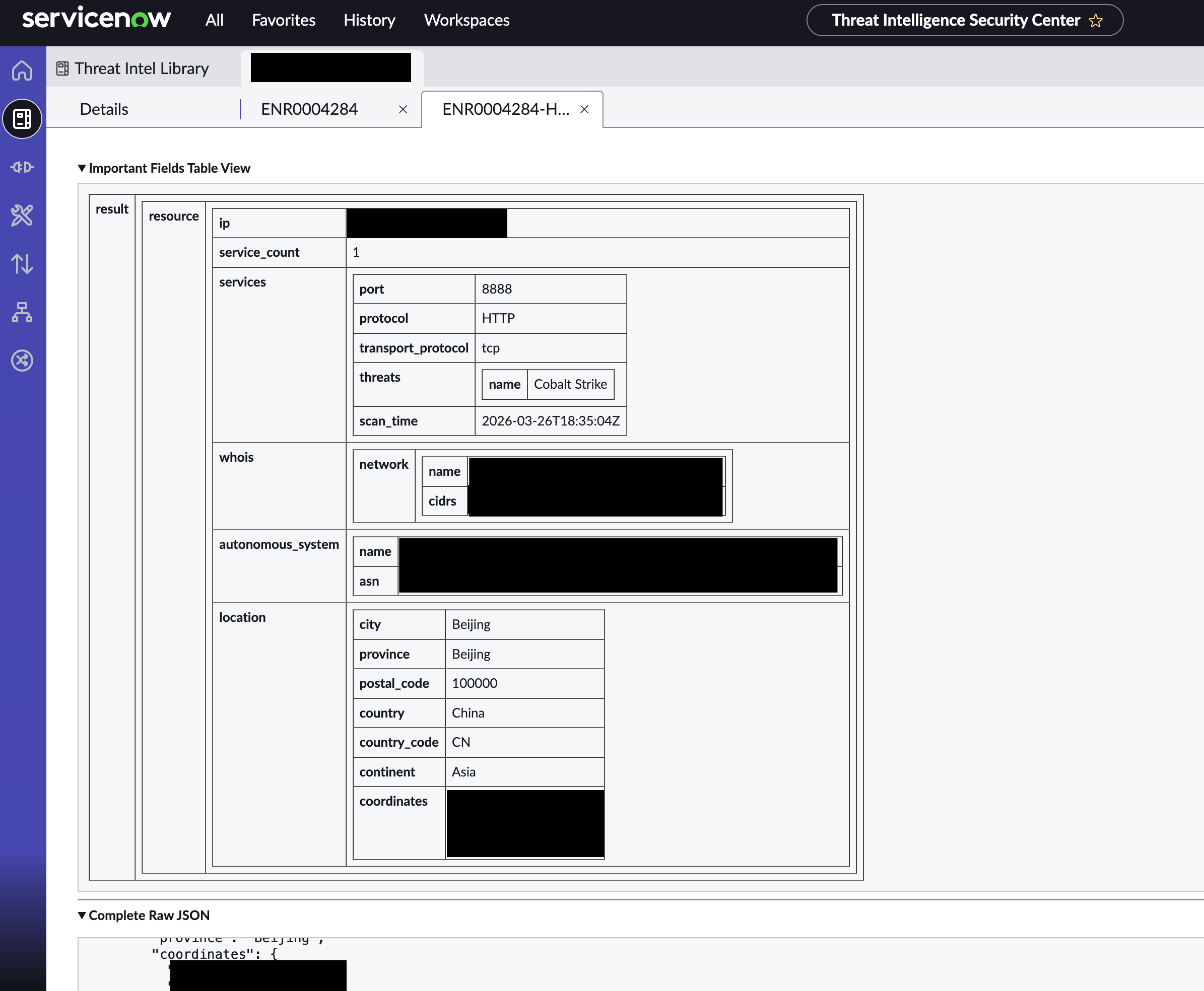
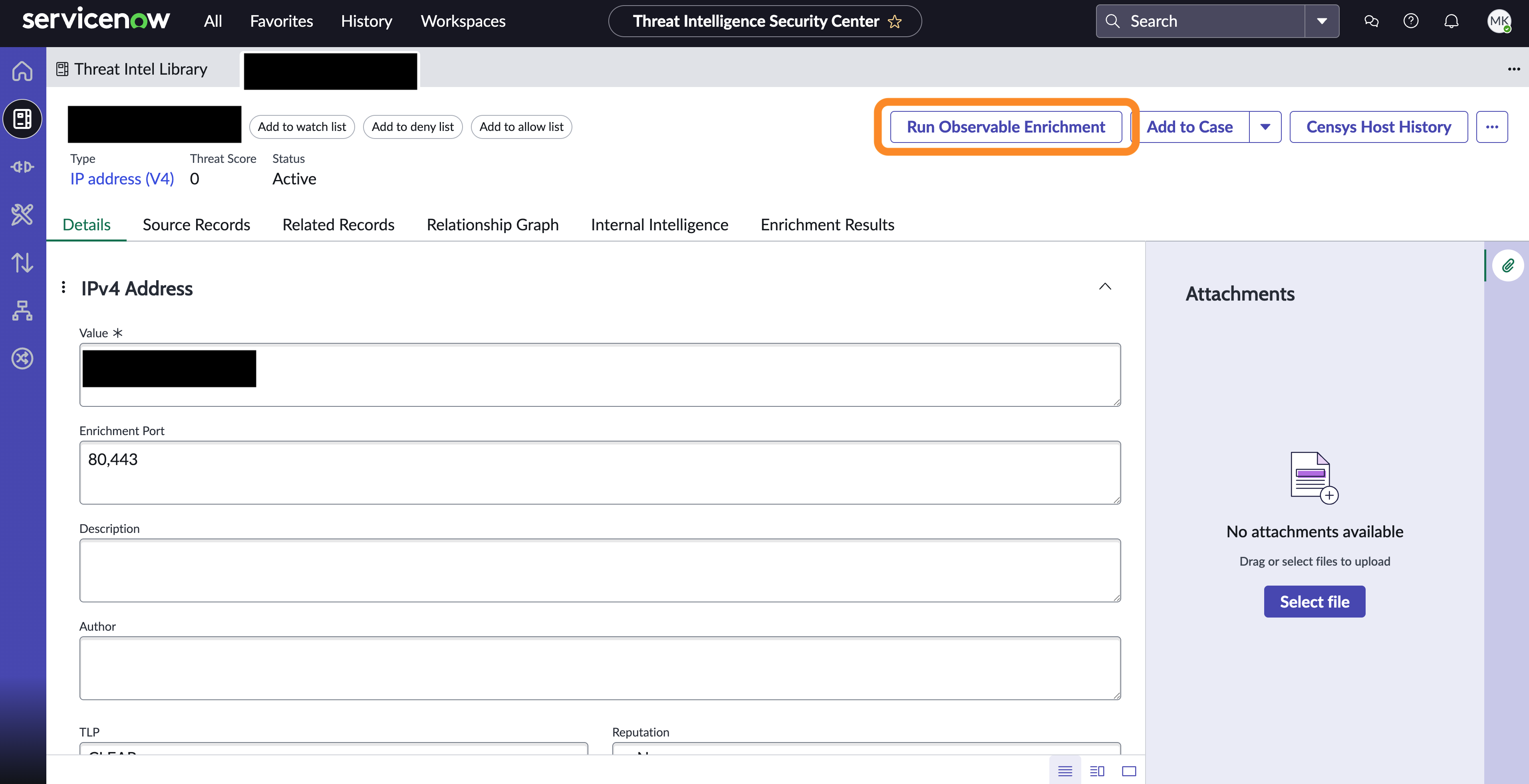
An example IPv4 observable in ServiceNow TISC that has been enriched with Censys data.
NoteThis guide explains how to integrate the Censys Platform with ServiceNow TISC. Censys also has several Attack Surface Management (ASM) integrations with ServiceNow:
Prerequisites
-
A ServiceNow cloud-deployed instance on version Yokohama, Zurich, or Australia.
- The ServiceNow instance must have the Threat Intelligence Security Center for Security Operations plugin installed.
-
A ServiceNow admin user with access to your instance.
-
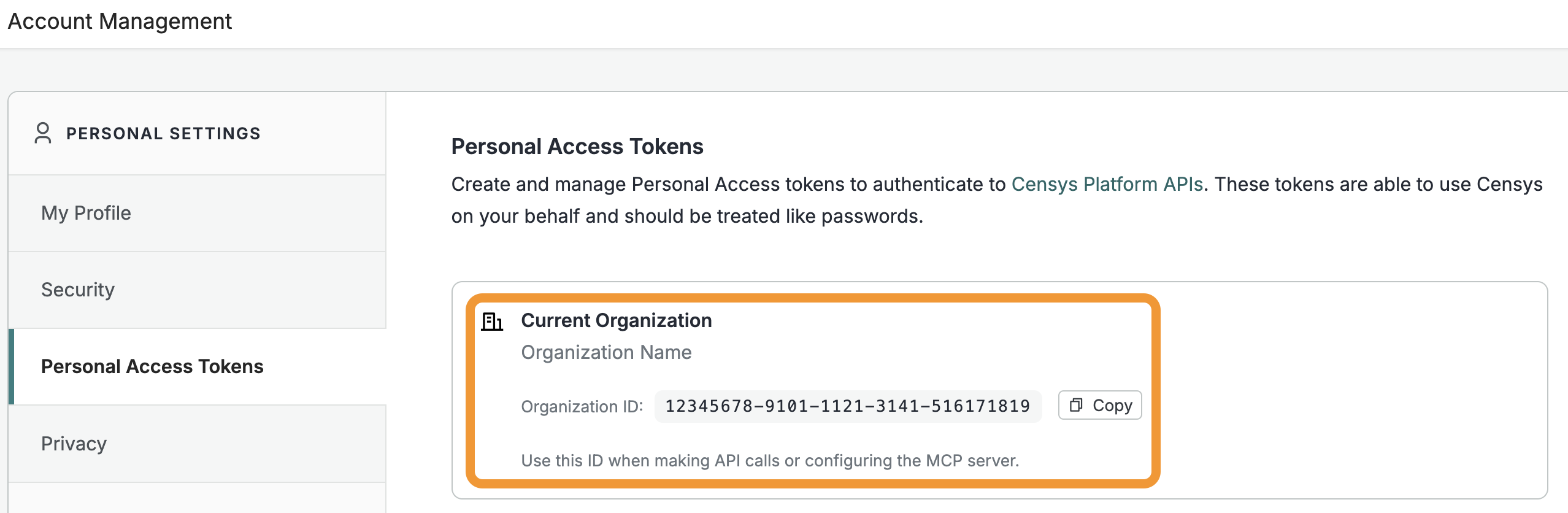
Your Censys Platform organization ID.
- To obtain your organization ID:
-
Open the Platform web console and ensure that your organization account is selected. Go to Settings > Account Management > Personal Access Tokens.
-
The ID for your organization is shown in the "Current Organization" box. Click Copy to copy it to your clipboard.
-
- To obtain your organization ID:
-
A Censys Platform Personal Access Token (PAT). Instructions on how to create and manage PATs are available in the API documentation.
User roles
The following ServiceNow roles can be used for this integration.
- sn_sec_tisc.admin (application admin is added in this role)
- sn_sec_tisc.analyst
- sn_sec_cmn.admin
Censys recommends that you assign these roles to ServiceNow users based on your needs or create new users with the roles. An example role configuration for two new Censys-specific users is provided below.
| Role | ServiceNow user roles |
|---|---|
| Censys Admin | sn_sec_tisc.admin, workflow_admin, flow_designer |
| Censys Analyst | sn_sec_tisc.analyst, sn_sec_cmn.admin |
Installation and configuration
To install and configure the integration, you need to add the integration from the ServiceNow console and set up Censys enrichment in TISC. To set up automatic enrichment, you need to configure it in the ServiceNow Flow Designer after app installation.
1. Install the Censys integration
- Go to the ServiceNow Store page for the Censys for ServiceNow TISC integration. Click Get.
- Log in to the instance that you want to install the integration on.
- In ServiceNow, navigate to System Applications > All Available Applications > All.
- Click the Not Installed tab.
- Locate the Censys TISC integration, select it, and click Install.
2. Configure TISC observable Censys enrichment
-
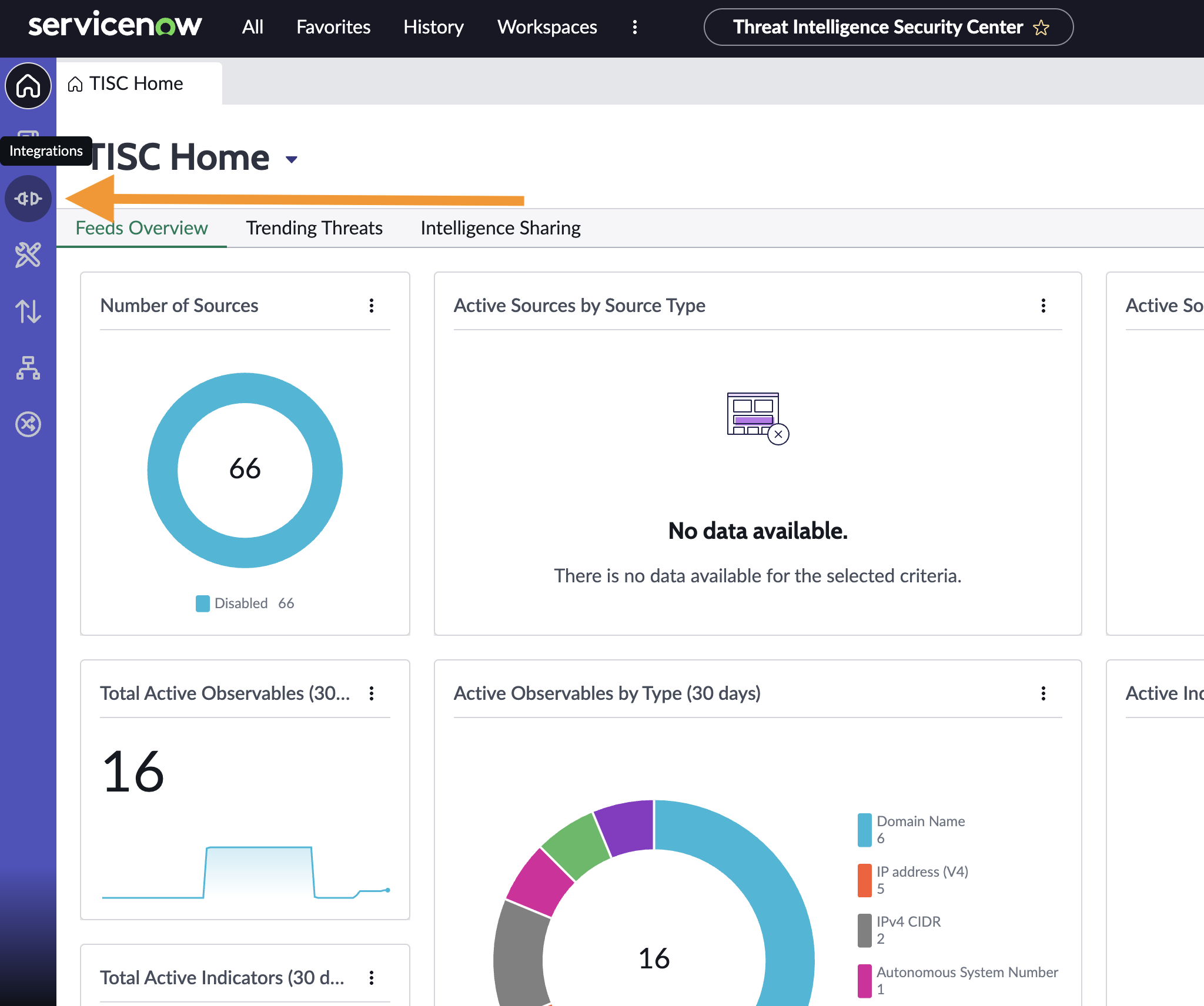
In the ServiceNow console, go to Threat Intelligence Security Center.
-
In the left sidebar, select Integrations.
-
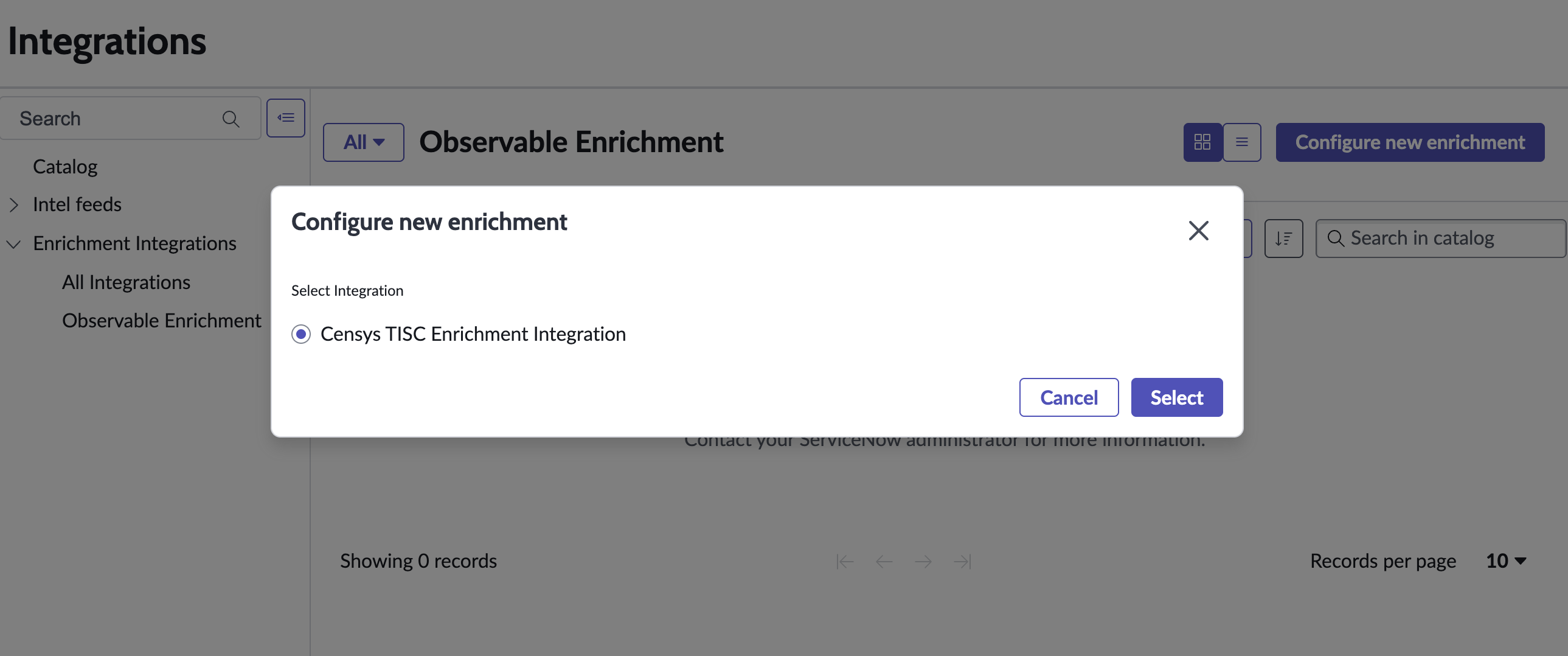
Go to Enrichment Integrations > Observable Enrichment.
-
Click Configure New Enrichment.
-
Select "Censys TISC Integration" and click Select.
-
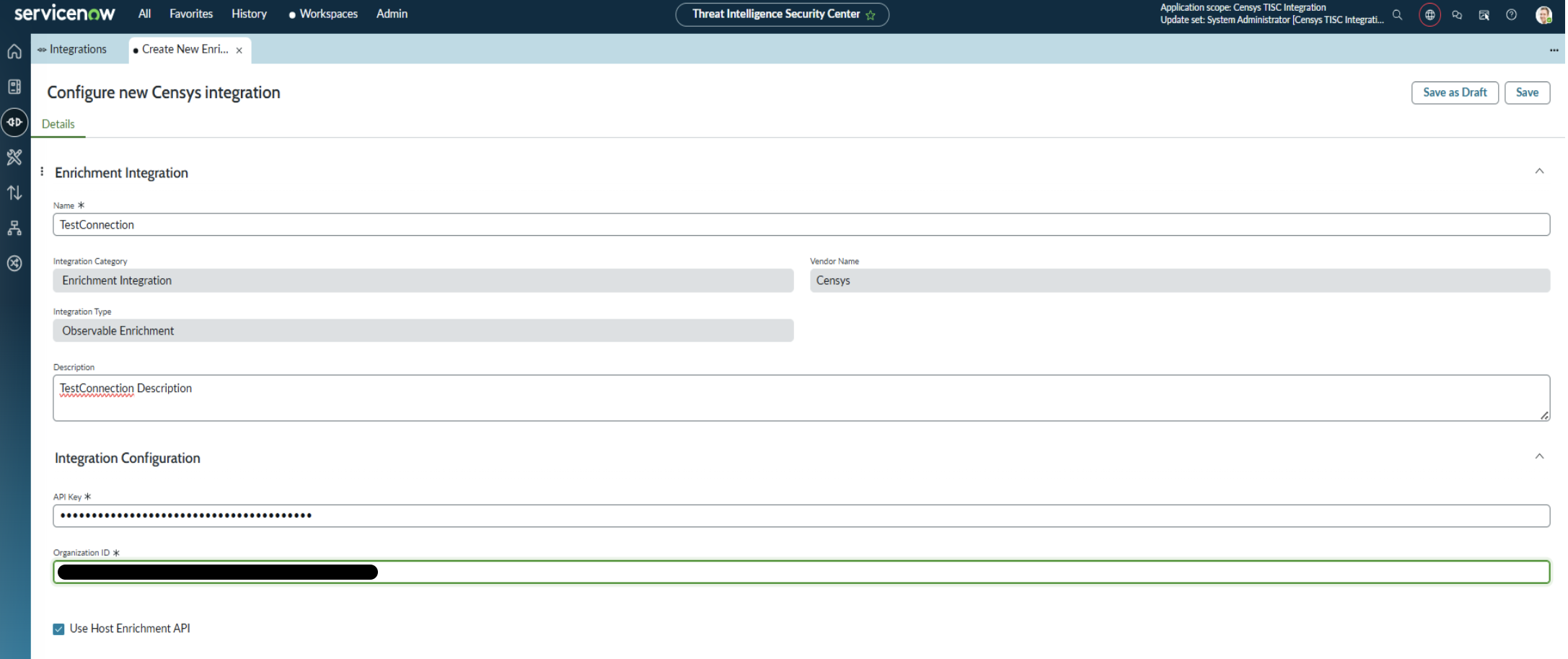
On the "Configure new Censys integration" page:
-
In the "Name" field, enter a name like "CensysEnrichment".
-
In the "API Key" field, enter your PAT.
-
In the "Organization ID" field, enter your Platform organization ID.
-
Check the "Use Host Enrichment API" box to use the host enrichment API endpoint instead of the get host API endpoint when retrieving information about hosts. The host enrichment API returns a curated set of host IPv4 or IPv6 data designed specifically for high-volume, automated lookups in SOC environments.
-
-
Click Save.
-
Click Enable.
Censys for ServiceNow TISC actions
The Censys for ServiceNow TISC integration adds the following actions.
| Action | Description |
|---|---|
| Censys Enrichment | This action enriches host, web property, or certificate observables in ServiceNow with Censys data. It can be run manually or automatically. Automatic enrichment requires additional setup in Flow Designer that is described below. |
| Censys Host History | Retrieves the scan history for a host (IP address). Allows users to view historical scan data, track infrastructure changes over time, and identify when services were added, removed, or modified. |
| Censys Rescan | Use this action to rescan a host service or a web property. |
| Ad-Hoc IOC Lookup | Use this action to retrieve Censys data for a non-present host, web property, or certificate observable in ServiceNow. You can run this action from the Flow Designer. |
| Censys Related Infrastructure | This action initiates a CensEye job to discover related infrastructure for a given target (host, web property, or certificate). This action is only available to users with access to the Adversary Investigation module. |
Automatic enrichment
-
In ServiceNow, go to Process Automation > Flow Designer.
-
Select the Flows tab. Search for and select "Censys - Auto Enrichment Configuration Template."
-
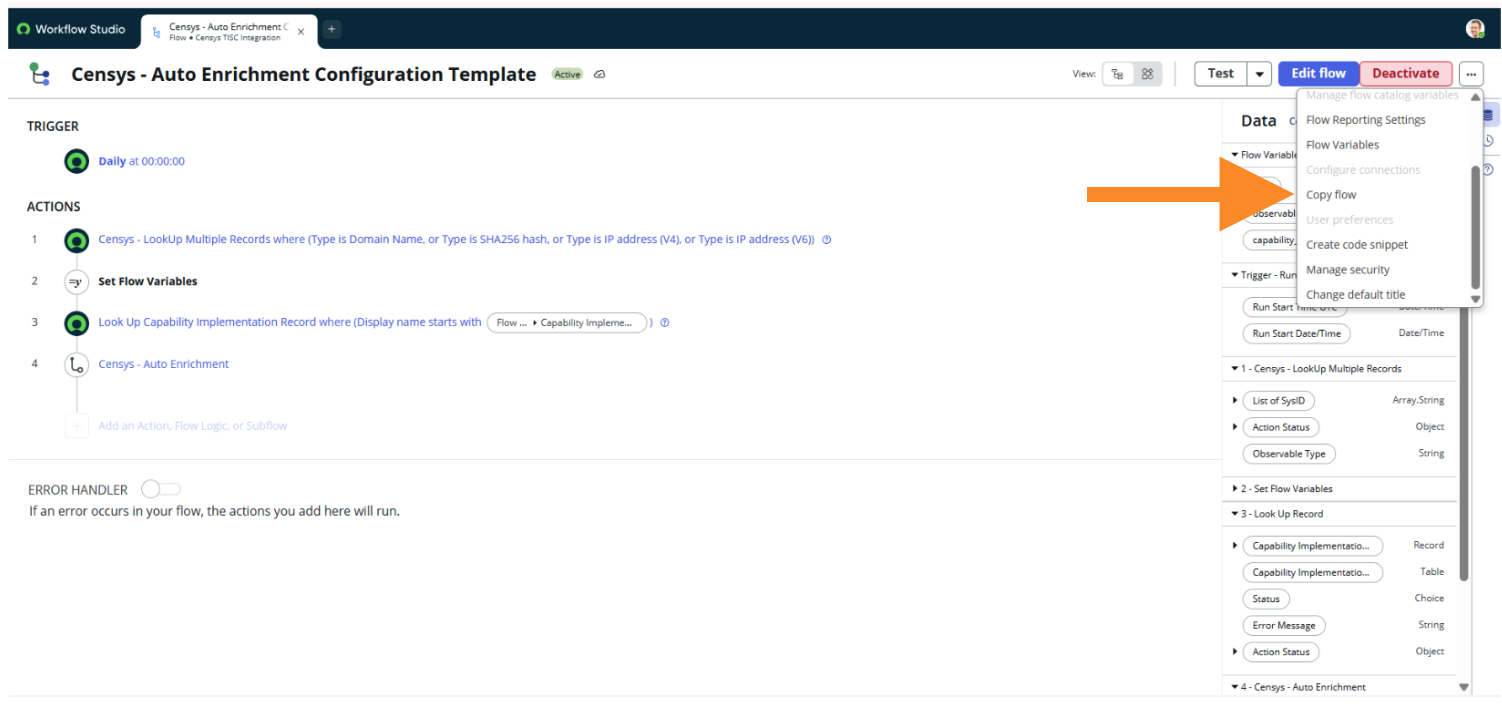
Open the three-dot menu and click Copy flow.
-
In the "New flow name" field, enter a descriptive name for the flow.
-
In the "Application" field, select your Censys TISC integration.
-
In the "Trigger" section on your new flow, configure your desired frequency for automatic enrichment and click Done.
-
Under "Actions," select the first step labeled Censys - Lookup Multiple Records. You need to set up different copies of this flow for each observable type you want to enrich. Remove the types for your specific flow configuration, then click Done.
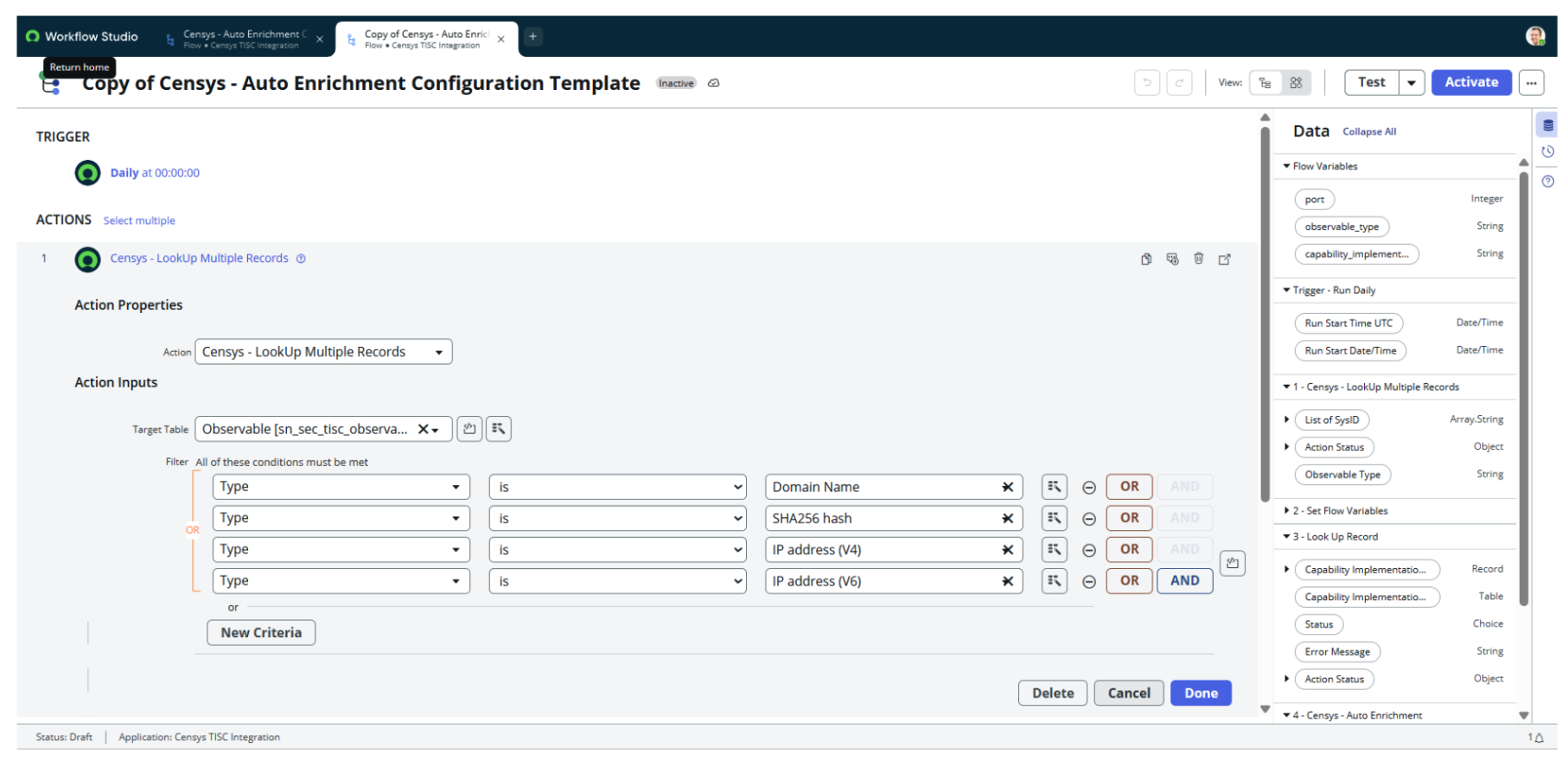
The default settings for the Lookup Multiple Records step. You need to set up a different version of this flow for each observable type.
- (Optional) To configure automatic web property enrichment:
-
Select the second step labeled Set Flow Variables.
-
Next to Data, click the plus sign.
-
In the Name dropdown, select port.
-
In the "Data" field, enter the port numbers you want to target for web property enrichment.
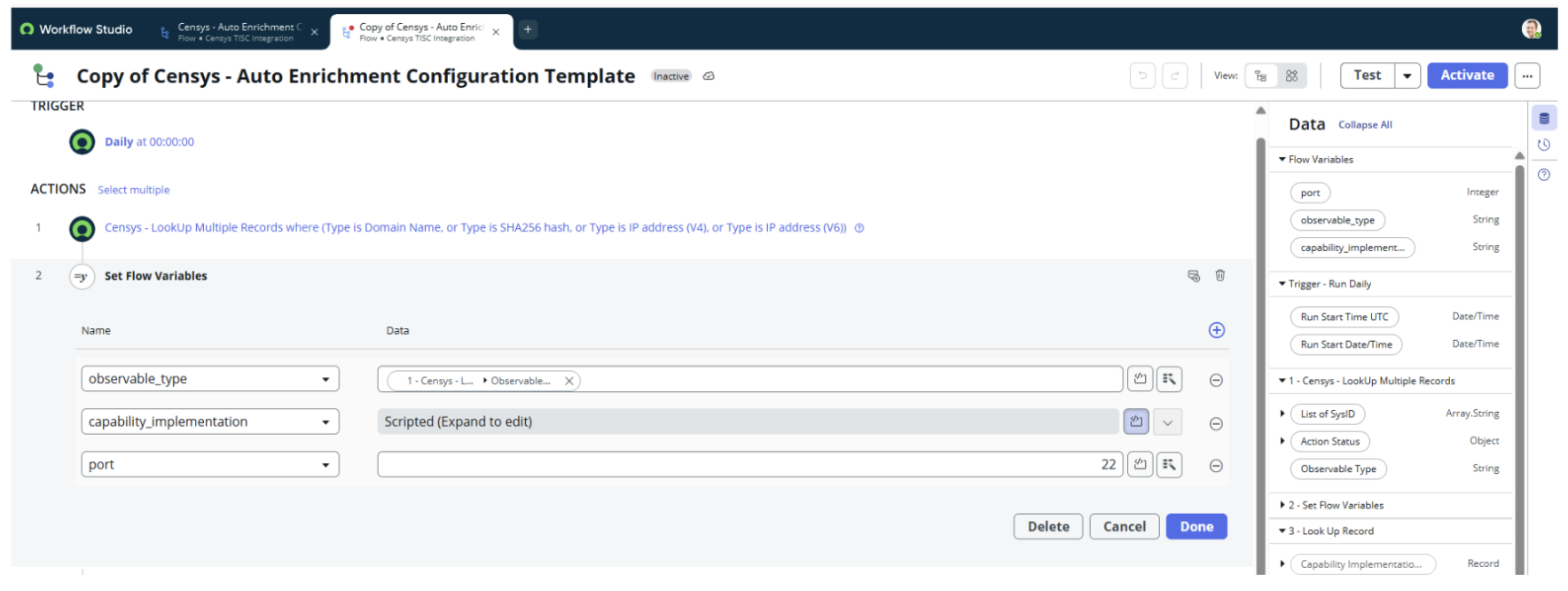
An example automatic enrichment step configured to enrich web properties using port 22.
-
Click Done.
-
- (Optional) To configure automatic web property enrichment:
-
Select the third step labeled Lookup Capability Implementation Record. Remove the display name condition value and add the exact name of the integration in the value, like
Censys Host Enrichment - CensysIntegration.- For host enrichment add
Censys Host Enrichment - <Integration_configuration_name>. - For certificate enrichment add
Censys Certificate Enrichment - <Integration_configuration_name>. - For web property enrichment add
Censys Web Property Enrichment - <Integration_configuration_name>.
- For host enrichment add
-
Click Done.
-
In the top right corner, click Activate.
Manual enrichment
To manually enrich an observable that is present in ServiceNow TISC:
-
Navigate to the observable IP address, domain name, or SHA-256 hash in the Threat Intelligence Security Center's Threat Intel Library.
-
On the top right corner of the page, click Run Observable Enrichment.
-
Select the appropriate type of Censys enrichment and click Submit.
View enriched data on observables
To see the Censys enrichment on an observable:
- Navigate to the observable in the Threat Intelligence Security Center's Threat Intel Library.
- Click the Enrichment Results tab and select the entry for Censys enrichment of that observable.
- Click View HTML Raw Response.
A summary of important data about the observable is provided at the top of the window. Scroll down to the "Complete Raw JSON" or "Complete Data Table View" sections to see more information.
Run Censys Rescan on a host service or web property observable
To execute a rescan on a host service or web property observable:
-
Navigate to the observable in the Threat Intelligence Security Center's Threat Intel Library.
-
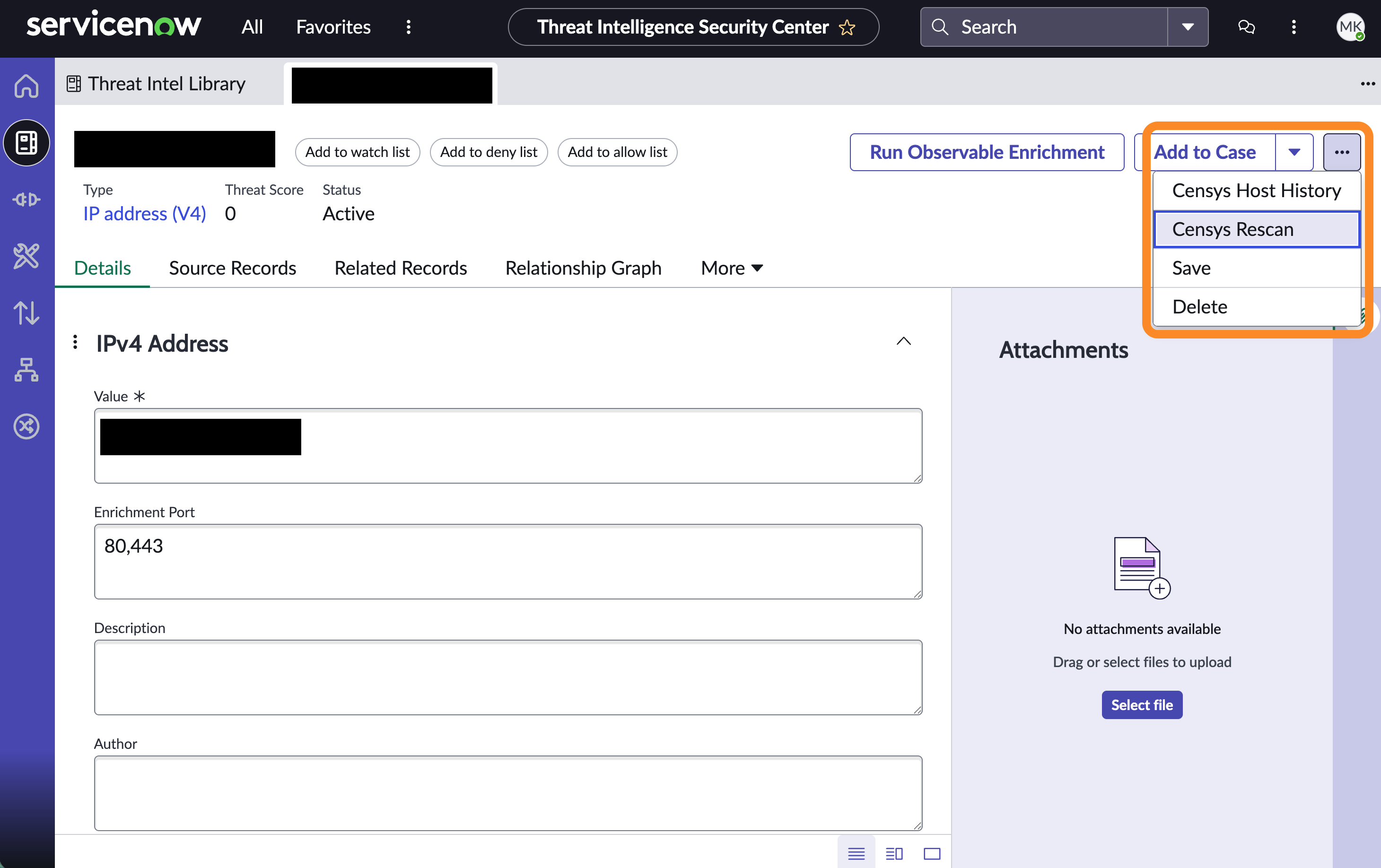
On the top right corner, click the three dot menu and select Censys Rescan.
-
Input the required parameters and click Submit.
After the rescan executes successfully, the resulting data will be available on the Enrichment Results tab.
Retrieve Censys host history for an observable
To retrieve the history for a host:
- Navigate to the observable in the Threat Intelligence Security Center's Threat Intel Library.
- On the top right corner, click the three dot menu and select Censys Host History.
- Input the required parameters and click Submit.
After the data is retrieved, it will be available on the Enrichment Results tab.
Ad-hoc IOC lookup
To retrieve the Censys data for an observable that is not present in TISC:
- In ServiceNow, go to Flow Designer > Subflows.
- Search for and select "Censys - AdHoc IOC."
- Click Test.
- On the "Test subflow" window:
- In the "IOC Value" field, enter an IP address, hostname, or SHA-256 hash for a certificate.
- In the "Port" field, enter the port number. Note that this is only used for web property enrichment.
- In the "Integration Configuration" menu, select your integration.
- In the "Enrichment Type" dropdown, select the type of asset you are enriching.
- Click Run Test.
If the observable does not already exist in your Threat Intel Library, then it will be added and enriched with Censys data. If the observable already exists in your library, then this action will enrich the observable.
Related infrastructure
NoteThis action is only available to Censys users with access to the Adversary Investigation module.
Use the related infrastructure action to discover and map internet-facing assets that share parsed Censys data key-value pairs. This action leverages the CensEye automated pivoting tool.
Each row of the output table is a Censys data key-value pair or group of key-value pairs, the count of assets in the Censys Internet Map that share that pair or group, and a link to see all assets that feature the pair in the Censys Platform.
Use the Censys TISC dashboard
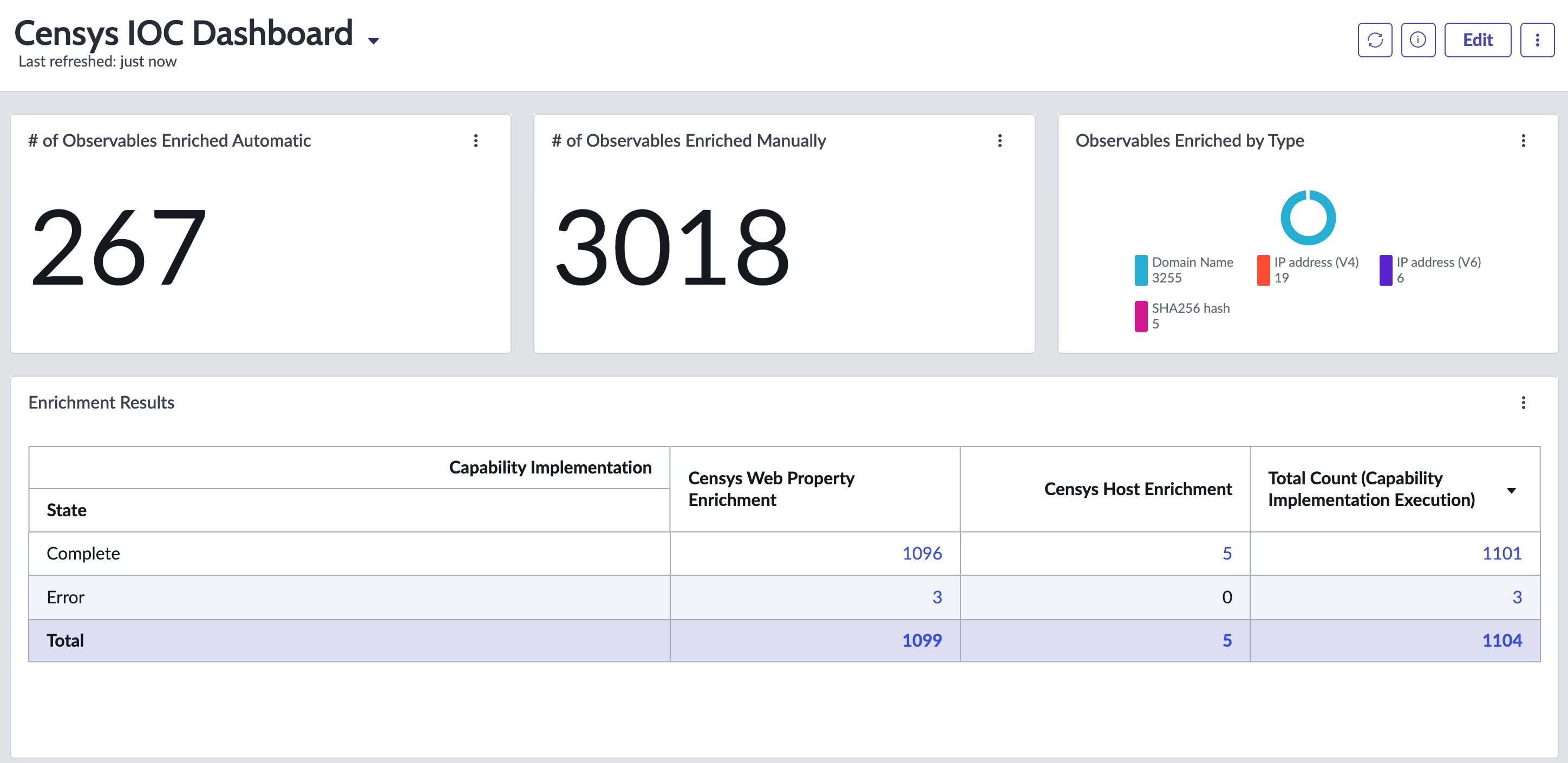
To use the dashboard, in ServiceNow, go to Censys TISC Integration > Dashboard.
The dashboard contains an overview of automatic and manual enrichment actions executed using the app.
Updated 6 days ago