
Splunk Platform Integration
The Censys for Splunk Platform integration adds the ability to:
-
Automatically or manually enrich IPs, web properties, and certificates in Splunk with Censys Platform data.
-
Initiate a Censys rescan of a host or web property.
-
Retrieve scan history for an IP address.
-
Initiate a CensEye automated pivoting job to find assets related to an IP, web property, or certificate.
Additionally, it adds a Censys SOC dashboard that shows all Censys actions executed using the app.
This guide walks through how to set up and use the Censys for Splunk Platform application.
NoteMost of the Censys API calls used by this integration will deduct credits from your organization's balance. Reference the API documentation for more information on credit costs.
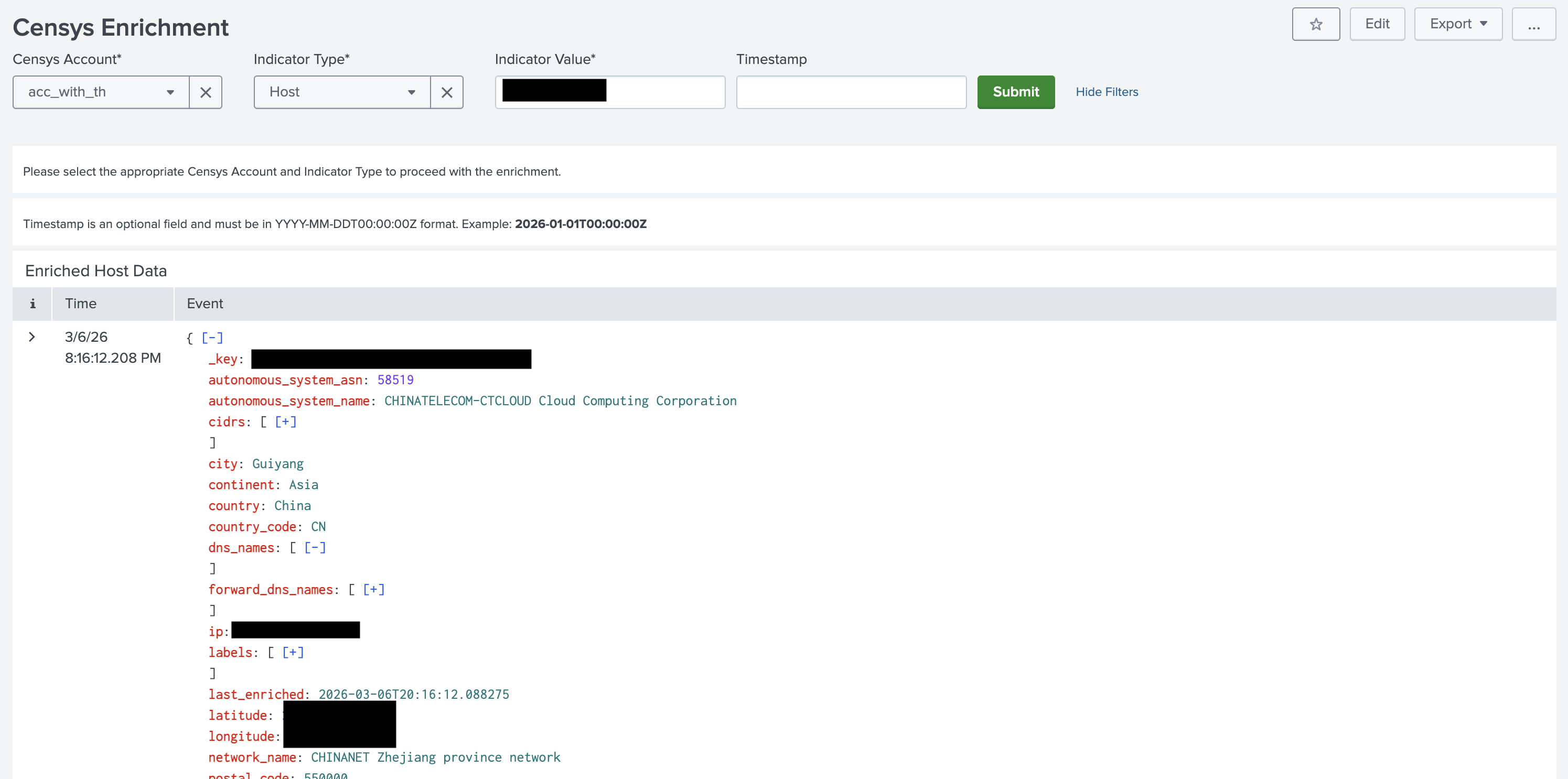
This image shows part of the output from running the Censys Enrichment action for an IP address in the Splunk Platform web app.
NoteThis guide explains how to integrate the Censys Platform with the Splunk Platform. Censys also has an Attack Surface Management (ASM) integration with Splunk.
Prerequisites
-
An active Splunk ES deployment.
-
A Splunk ES user account with admin permissions.
-
Any Splunk users you want to execute Censys app actions must have the following Splunk permissions:
list_storage_passwordslist_settings
-
Any Splunk users you want to execute Censys app actions and view the app dashboard must have write access to the app.
-
Your Censys Platform organization ID.
- To obtain your organization ID:
-
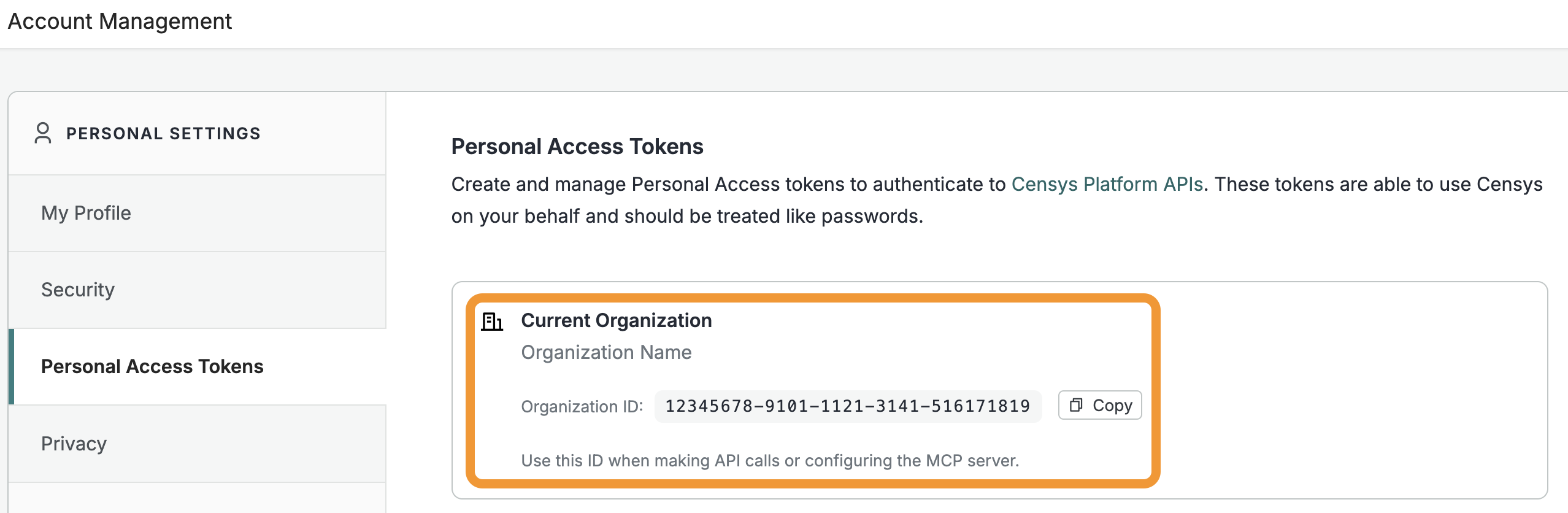
Open the Platform web console and ensure that your organization account is selected. Go to Settings > Account Management > Personal Access Tokens.
-
The ID for your organization is shown in the "Current Organization" box. Click Copy to copy it to your clipboard.
-
- To obtain your organization ID:
-
A Censys Platform Personal Access Token (PAT). Instructions on how to create and manage PATs are available in the API documentation.
Installation and configuration
- Access your Splunk Platform dashboard as a user with admin permissions. Go to Apps > Find More Apps. Search for "censys".
- In the card for Censys for Splunk Platform, select Install. Follow the prompts to install the app.
- Alternatively, install the app by downloading it from Splunkbase.
- In the top left navigation bar, select Apps > Censys for Splunk Platform.
- On the Configuration tab, click Add.
- In the window, enter a name for your Censys account configuration. Then enter your organization ID and your PAT.
- Click Add.
Censys for Splunk Platform actions
The Censys for Splunk Platform app adds the following actions.
| Action | Description |
|---|---|
| Censys Host, Web Property, and Certificate Enrichment | Use this action to enrich a host, web property, or certificate with Censys data. The data returned depends on your organization's license tier. You can run this action from within the app menu and on notable events and alerts. To enrich a host, you must enter its IP address. To enrich a web property, you must enter its hostname and port. You may include a timestamp for hosts or web properties to retrieve data for that asset at a specific time. To enrich a certificate, you must enter its SHA-256 hash. You can execute these actions manually or configure them to run automatically. |
| Censys Rescan | Use this action to rescan a host service or a web property. To rescan a host service, you must enter its IP address, port number, the protocol, and the transport protocol. To rescan a web property, you must enter its hostname and port number. This action can only be executed manually. |
| Censys Host History | Use this action to retrieve the scan history for a host. You must enter an IP address and a start time and end time to run this action. This action can only be executed manually. |
| Censys Related Infrastructure | This action initiates a CensEye job to discover related infrastructure for a given target (host, web property, or certificate). This action is only available to users with access to the Adversary Investigation module. This action can only be executed manually. |
Manually execute Censys actions
You can manually execute Censys integration actions from the app menu via the "Actions" submenu or from the "Adaptive Response Actions" menu on alerts.
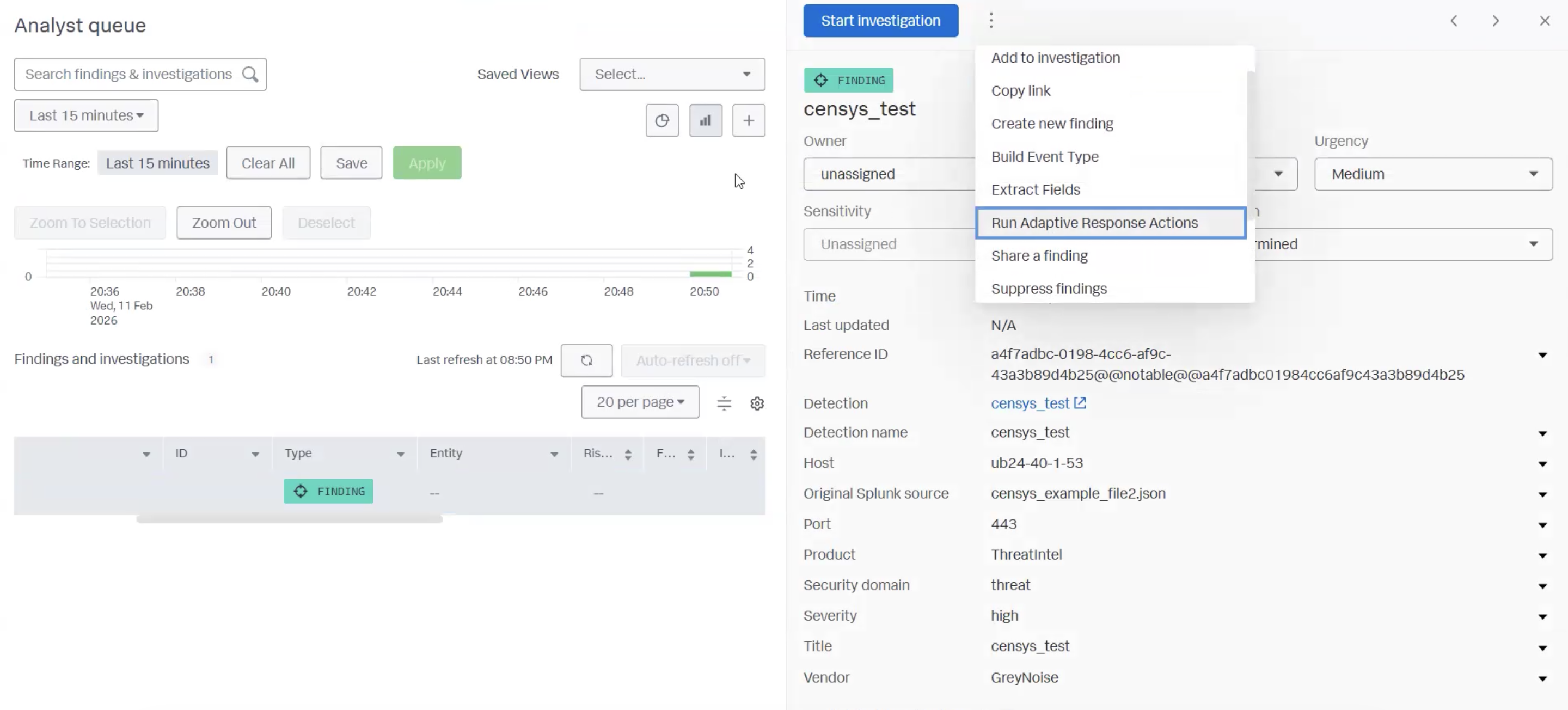
For each action, input the required parameters and click Run.
Related infrastructure
NoteThis action is only available to Censys users with access to the Adversary Investigation module.
Use the related infrastructure action to discover and map internet-facing assets that share parsed Censys data key-value pairs. This action leverages the CensEye automated pivoting tool.
Each row of the output table is a Censys data key-value pair or group of key-value pairs, the count of assets in the Censys Internet Map that share that pair or group, and a link to see all assets that feature the pair in the Censys Platform.
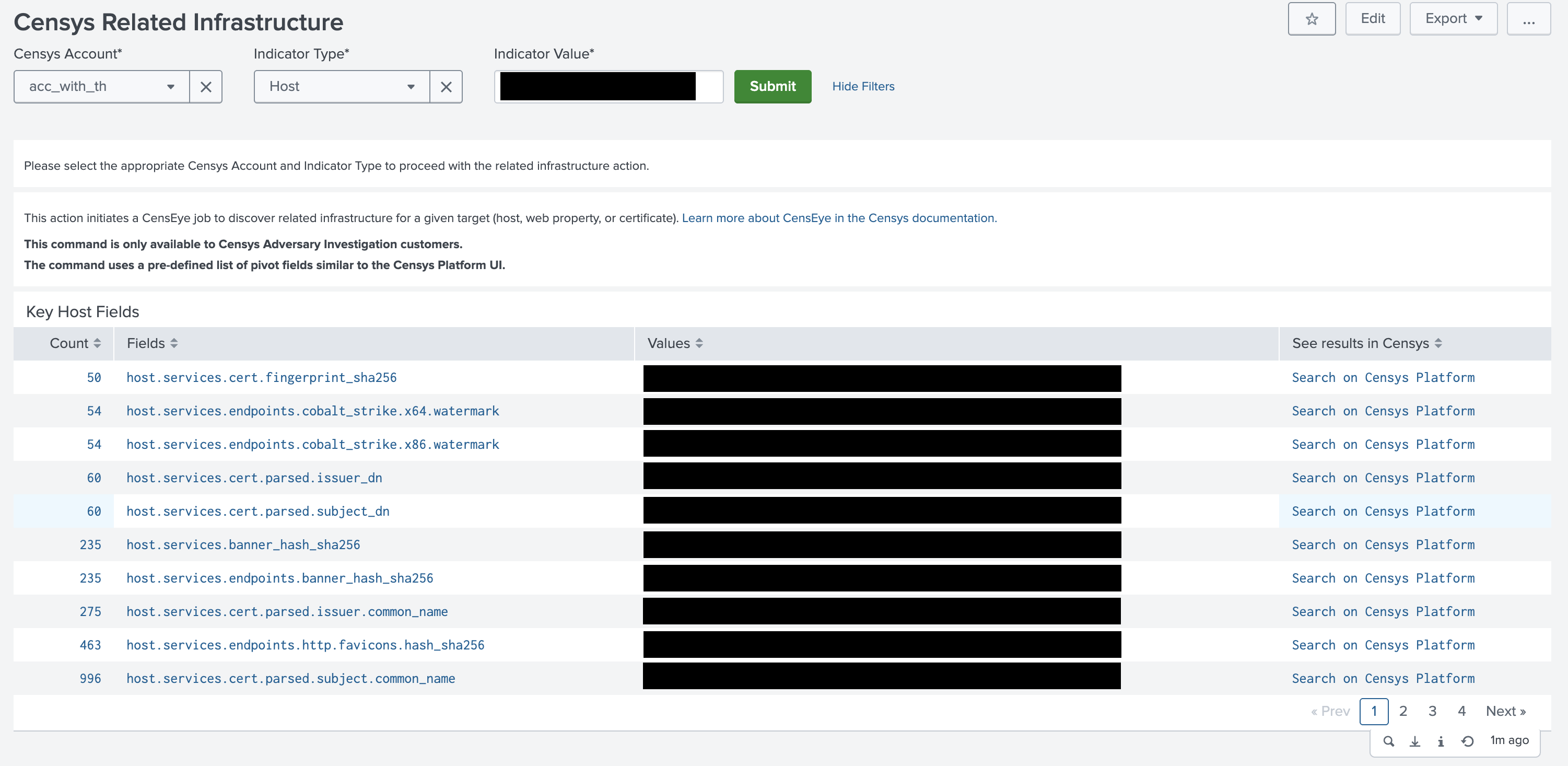
The example output of a related infrastructure action executed against a host.
In the example screenshot shown above, the related infrastructure action shows that there are 50 other hosts with services that are using the same certificate. You can use the link in the "See results in Censys column" to find potentially related hosts for additional investigation, blocking, and so on.
Automatic enrichment
You can enable automatic enrichment for IPs, web properties, and certificates in Splunk notable events. This enrichment utilizes three saved searches:
censys_notable_index_certificate_enrichmentfor certificate enrichment.censys_notable_index_host_enrichmentfor host enrichment.censys_notable_index_web_property_enrichmentfor web property enrichment.
To enable automatic enrichment:
- Go to Apps > Censys for Splunk Platform > Configuration > Enable ES Finding Enrichment.
- Check the box for Enable ES Finding Enrichment.
- In the Censys Account dropdown, select your Censys account configuration.
- In the Frequency dropdown, select whether you want the saved searches for automatic enrichment to run every 30 minutes or 60 minutes.
- Click Save. This will enable all three saved searches.
Configure saved searches for automatic enrichment
To modify the saved searches for automatic enrichment or disable one of the saved searches:
- Go to Settings > Knowledge > Searches, reports, and alerts.
- Next to the name for a saved search, click Edit.
- To disable a saved search entirely, click Disable.
- To edit the query for a saved search, click Edit Search and modify the query syntax in the Search field. Click Save when you are done.
Censys for Splunk Platform SOC dashboard
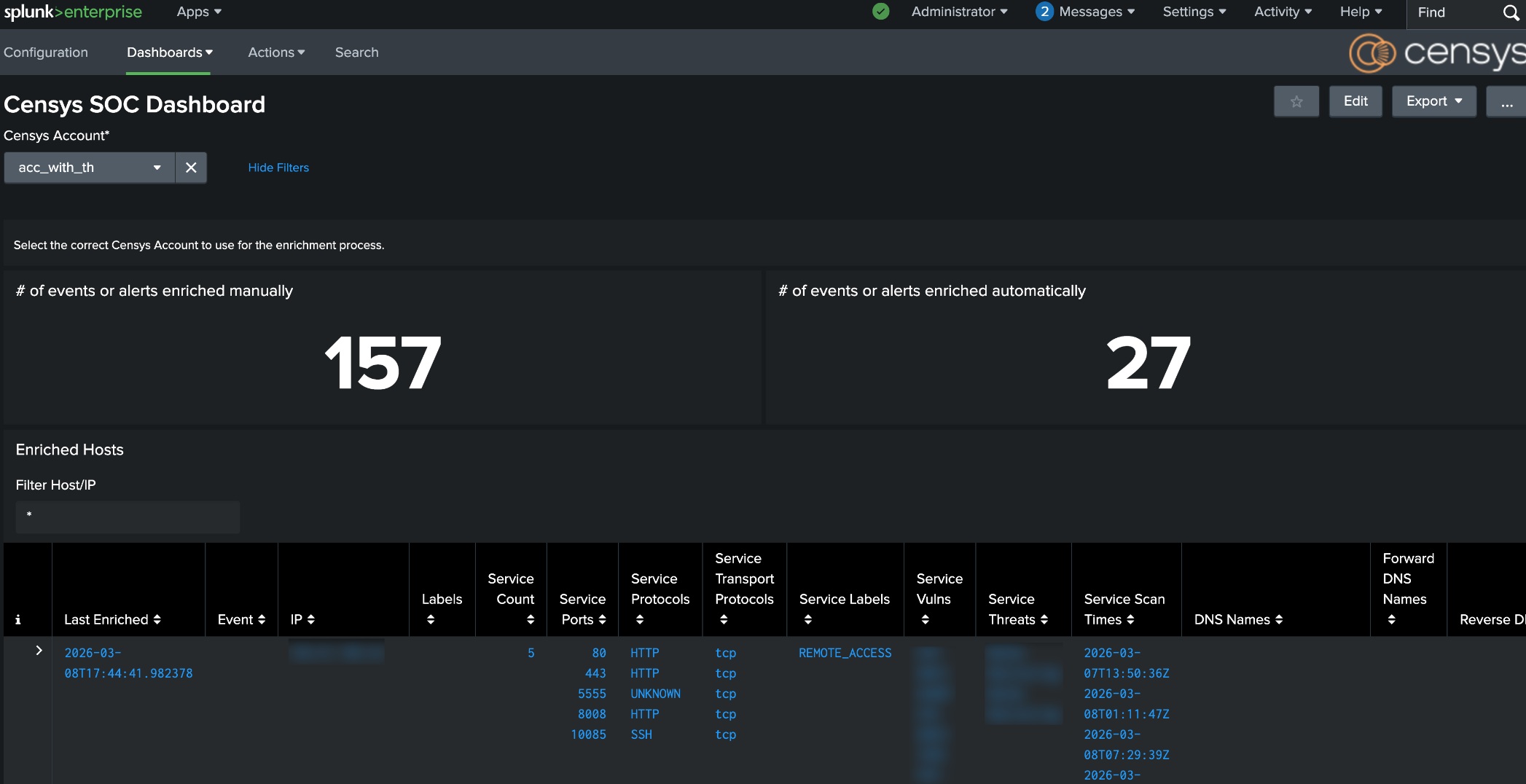
The dashboard included with the Splunk Platform app displays a count of events enriched with Censys data manually and automatically. It is useful for auditing and examining usage history.
To access the dashboard, go to Apps > Censys for Splunk Platform > Dashboards > Censys SOC Dashboard. If you have configured your app to use multiple Censys accounts, use the Censys Account dropdown to select the account you want to view information for.
Updated 16 days ago