
Microsoft Sentinel Integration
The Censys for Microsoft Sentinel integration adds playbooks to:
- Enrich IPs, web properties, and certificates in Microsoft Sentinel with Censys Platform data. These playbooks can be initiated manually or automatically.
- Initiate a Censys rescan of a host or web property.
- Retrieve scan history for an IP address,
- Initiate a CensEye automated pivoting job to find assets related to an IP, web property, or certificate.
Additionally, it adds a dashboard that shows all actions executed using the app.
This guide walks through how to set up and use the Censys for Microsoft Sentinel application.
NoteMost of the Censys API calls used by this integration will deduct credits from your organization's balance. Reference the API documentation for more information on credit costs.
Prerequisites
The following list contains prerequisites for setting up this integration. For more information about configuring Microsoft Sentinel, reference Microsoft's documentation.
-
An active Azure subscription.
-
An Azure resource group with the Microsoft Sentinel Contributor role at the Subscription level.
-
A Logs Analytics Workspace with Microsoft Sentinel enabled in your Azure subscription.
-
Your Censys Platform organization ID.
- To obtain your organization ID:
-
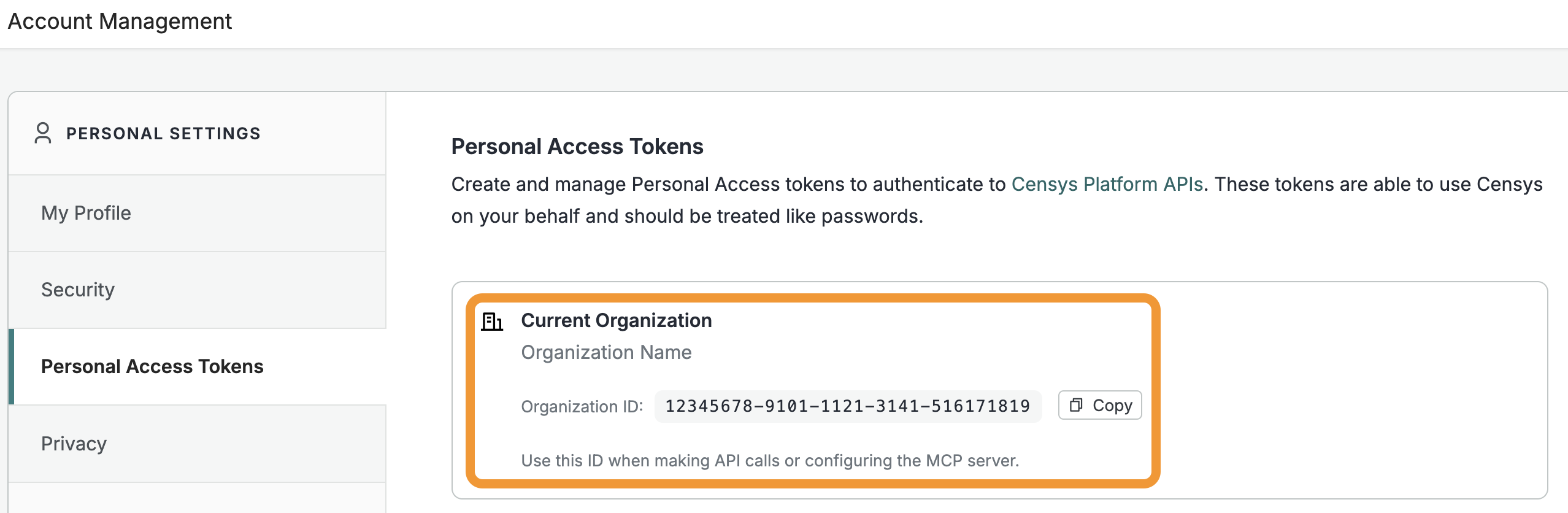
Open the Platform web console and ensure that your organization account is selected. Go to Settings > Account Management > Personal Access Tokens.
-
The ID for your organization is shown in the "Current Organization" box. Click Copy to copy it to your clipboard.
-
- To obtain your organization ID:
-
A Censys Platform Personal Access Token (PAT). Instructions on how to create and manage PATs are available in the API documentation.
Installation and configuration
Retrieve and install the integration from the Microsoft Marketplace.
During the setup process, configure the integration to use your organization ID and PAT.
Configure Censys for Microsoft Sentinel workbook dashboard
After installing the app, you can set up a workbook dashboard that displays a record of app activity as well as a portal for manually executing app actions.
To configure the workbook:
- Navigate to the Microsoft Sentinel homepage, then go to the workspace that you installed the Censys for Microsoft Sentinel app in.
- Go to Workbooks > Templates. Search for "censys" and click on the workbook.
- Click Save and select the location of your Microsoft Sentinel workspace, then click Yes.
You can now click View saved workbook to use the Censys workbook dashboard.
All of the Censys integration's actions can be executed manually from the workbook dashboard.
Censys for Microsoft Sentinel playbooks
The Censys for Microsoft Sentinel application adds the following playbooks. In addition to the CensysAddIncidentComment playbook, you must configure each one you want to use. See more about playbook setup below.
| Playbook name | Description |
|---|---|
| CensysAddIncidentComment | This playbook is used to add comments with enriched Censys data to incidents. You must set up and configure this playbook to use all other Censys for Microsoft Sentinel playbooks. |
| CensysAlertRescan and CensysRescan | These playbooks initiate a rescan of a host service or web property. For host services, you must provide an IP address, port, protocol, and transport protocol. For web properties, you must provide a hostname and a port. |
| CensysHostHistory | Retrieves the history of scan events on a host. You must provide an IP and enter a time range. |
| CensysIOCLookup | Retrieves Censys data for an IP address, web property, or certificate. You must input asset-specific data like an IP address, hostname and port, or SHA-256 hash. |
| CensysIncidentEnrichment | Enriches indicators like an IP address, domain, or certificate in an incident with Censys data. |
| CensysEntityEnrichmentCertificate, CensysEntityEnrichmentHost, and CensysEntityEnrichmentWebProperty | Enriches a certificate, host, or web property with Censys data. |
| CensysAlertEnrichment | Displays the number of alerts enriched with Censys data. |
| CensysRelatedInfrastructure | Uses CensEye to discover related infrastructure for a given target (host, web property, or certificate). This action is only available to users with access to the Adversary Investigation module. Learn more in the related infrastructure section below. |
Playbook setup and configuration
To use the playbooks installed by the app, you must:
- Set up a key vault configuration for the app
- Enable and configure the Censys Add Incident Comment playbook
- Authorize the API connection for the Add Incident Comment playbook
- Assign the Microsoft Sentinel Contributor to your playbook
- Set up all other playbooks you want to use
1. Set up a key vault configuration for the app
- In the Azure portal, go to Key vaults and click Create.
- Select your subscription, resource group, and enter a unique name for the key vault.
- On the Access configuration tab, under "Permission model," select Vault access policy and add your user access policy.
- Select your key vault. Go to Objects > Secrets.
- Click Generate/Import. In the name field, enter
Censys-Access-Token. In the value field, enter your PAT. - Click Create.
2. Enable and configure the Censys Add Incident Comment playbook
- In Microsoft Sentinel, go to the workspace that you installed the app in.
- Go to Automation > Playbook templates.
- Select the "Censys Add Incident Comment" playbook. Click Create playbook.
- In the "Basic" tab, select your subscription and resource group.
- Click Next: Connections.
- Click Next: Review + Create.
- Click Create playbook.
3. Authorize API connection for the Censys Add Incident Comment playbook
- In Microsoft Sentinel, go to Automation > Development Tools > API connections.
- Select Azureloganalyticsdatacollector-CensysAddIncidentComment and go to General > Edit API connection.
- Enter the workspace ID and workspace key where your Censys workbook is available and where the data will be ingested.
- To locate your Workspace ID, go to Log Analytics Workspace > Your workspace > Properties.
- You can retrieve your workspace key by using the following Azure CLI command. To access Azure CLI, click the shell or command prompt icon in the top-right corner of the Azure portal and paste command below:
az monitor log-analytics workspace get-shared-keys --resource-group resource-group-name --workspace-name workspace-name
- Click Save.
- Select Azuresentinel-CensysAddIncidentComment API Connection and go to General > Edit API connection.
- Click Authorize. An Azure Portal login prompt will open. Log in using your Azure Portal credentials.
- Click Save.
4. Assign role to Censys Add Incident Comment playbook
- Go to Log Analytics Workspace > [your workspace] > Access Control (IAM).
- Click Add > Add role assignment.
- In Assignment type: Job function roles, search for "Microsoft Sentinel Contributor" and click Next.
- In Members, select Managed identity for assigned access to the Add Incident Comment logic app.
- Click Select members and add your logic app as a member.
- Click Review + Assign.
5. Censys Incident Enrichment and all other playbooks setup and configuration
NoteYou must complete all steps in this process for each playbook you want to enable. The process documented here uses the Censys Incident Enrichment playbook as an example.
- Go to the Microsoft Sentinel workspace in which you have installed Censys.
- Go to Automation > Playbook templates and select the "Censys Incident Enrichment" playbook.
- Click Create playbook.
- On the "Basic" tab, select your subscription and resource group and click Next: Parameters.
- On the "Parameters" tab, provide the following:
- Ports: comma separated port numbers for web property enrichment. (eg:
80,443) (default:80,443). - Organization ID: Your Censys organization ID.
- IncidentEnrichmentPlaybookName: The name of your "CensysAddIncidentComment" playbook, such as
CensysAddIncidentComment. - KeyVaultName: Azure KeyVault Name where your Censys PAT is stored.
- TenantId: The Tenant ID of the Azure account. To retrieve your tenant ID, go to Key Vaults > Your Key Vault and select Directory ID.
- Ports: comma separated port numbers for web property enrichment. (eg:
- Click Next: Connections.
- Click Next: Review+Create.
- Click Create playbook.
Add API connections for the playbook
- In Microsoft Sentinel, go to Automation > Development Tools > API connections.
- Click Keyvault-CensysIncidentEnrichment and go to Edit API connection.
- Click Authorize. An Azure Portal login prompt will open. Log in using your Azure Portal credentials.
- After successfully authenticating, click Save.
- Complete this authorization process for each API connection.
Add access policy in key vault
Add access policy for the playbook's managed identity and authorized user to read and write secrets of the key vault.
- Go to Logic App > [your Logic App] > Settings > Identity > System assigned Managed identity and copy the Object (principal) ID.
- Make sure that the Status is set to On.
- Go to Key Vaults > [your key vault] > Access policies > Create.
- Select all keys & secrets permissions, then click Next.
- In the principal section, search by the object ID you coped, then click Next.
- Click Review + Create.
Repeat steps 2 to 5 to add the access policy for each connection.
Assign role to playbook
- Go to Log Analytics Workspace > [your workspace] > Access Control (IAM).
- Click Add > Add role assignment.
- In Assignment type: Job function roles, search for "Microsoft Sentinel Contributor" and click Next.
- Next to Assign access to, select Managed identity for assigned access to the logic app.
- Click Select members.
- Select your subscription, under Managed identity, select Logic app, and select the desired Censys playbook.
- Click Review + Assign.
Manually run Censys playbooks on incidents or incident entities
After you set up and configure Censys playbooks, you can manually initiate them on incidents or incident entities.
To run a playbook on an incident:
- Go to Microsoft Sentinel > [your workspace] > Incidents.
- Select an incident.
- In the right pane, click Actions. In the dropdown, select Run playbook.
- Next to the entry for CensysIncidentEnrichment, click Run.
To run a playbook on an incident entity:
- Go to Microsoft Sentinel > [your workspace] > Incidents.
- Select an incident.
- In the right pane, click View full details. Go to the Entities tab.
- Click ... on an entity entry, then select Run playbook.
- In the list of playbooks, select the appropriate playbook based on the entity type.
- For EntityType IP, select CensyEntityEnrichmentHost.
- For EntityType DNSDomain, select CensysEntityEnrichmentWebProperty.
- For EntityType FileHash, select CensysEntityEnrichmentCertificate.
- Click Run.
Set up automation rules with Censys actions
Follow the Microsoft Sentinel documentation to set up an automation rule. When you configure an automation rule to run an action, you can select any Censys playbook added by the app that you have configured.
Related infrastructure playbook
NoteThese actions and the playbook are only available to Censys users with access to the Adversary Investigation module.
Use the related infrastructure playbook to discover and map internet-facing assets that share parsed Censys data key-value pairs. The playbook leverages the CensEye automated pivoting tool.
Each row of the output table is a Censys data key-value pair or group of key-value pairs, the count of assets in the Censys Internet Map that share that pair or group, and a link to see all assets that feature the pair in the Censys Platform.
Updated 21 days ago