
Splunk SOAR Integration
The Censys for Splunk SOAR integration adds investigative actions that leverage Censys Platform data to Splunk SOAR. You can use these actions in playbooks or run them when examining events to enrich IPs, domains, and certificates. You can also use the integration to:
- Run Censys queries.
- Retrieve host scan history.
- Execute rescans.
- Initiate CensEye automated pivot jobs.
This guide walks through how to set up and use the Censys for Splunk SOAR application.
NoteMost of the Censys API calls used by this integration will deduct credits from your organization's balance. Reference the API documentation for more information on credit costs.
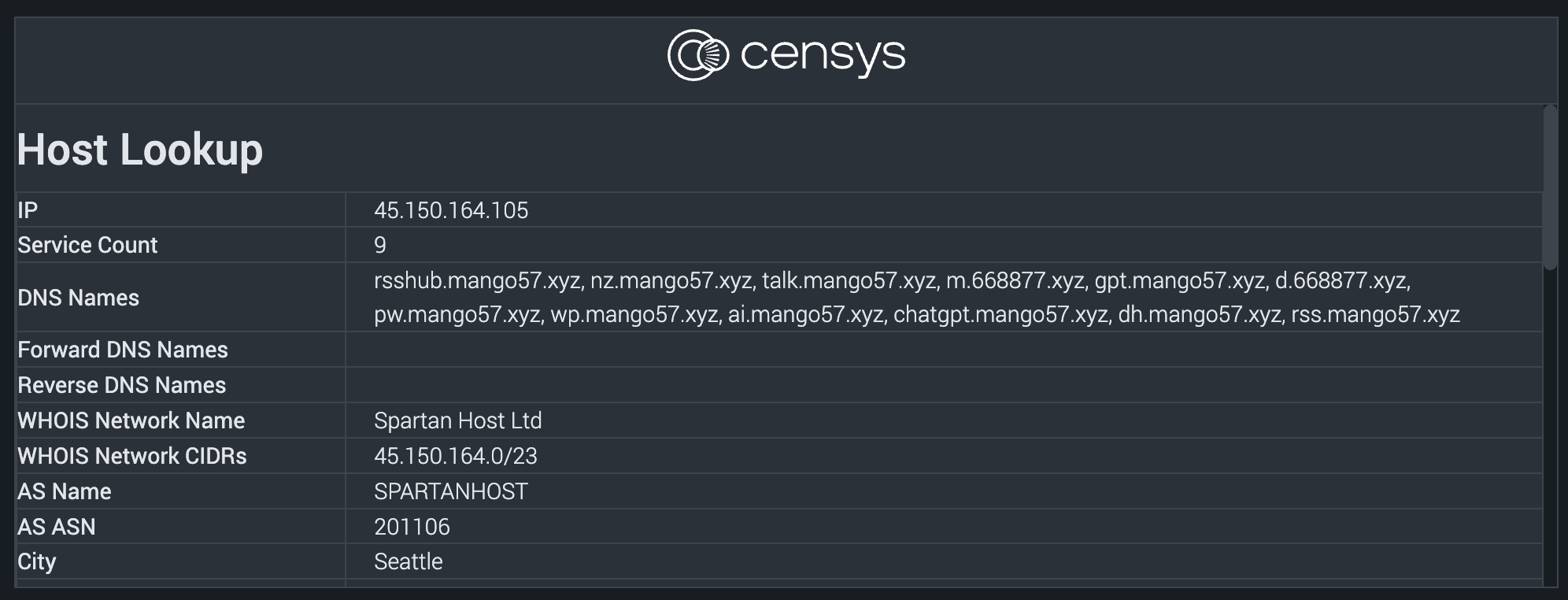
This image shows part of the output from running the Censys lookup host action when investigating an event in Splunk SOAR.
Prerequisites
-
An active Splunk SOAR deployment.
-
A Splunk SOAR user account with admin permissions.
-
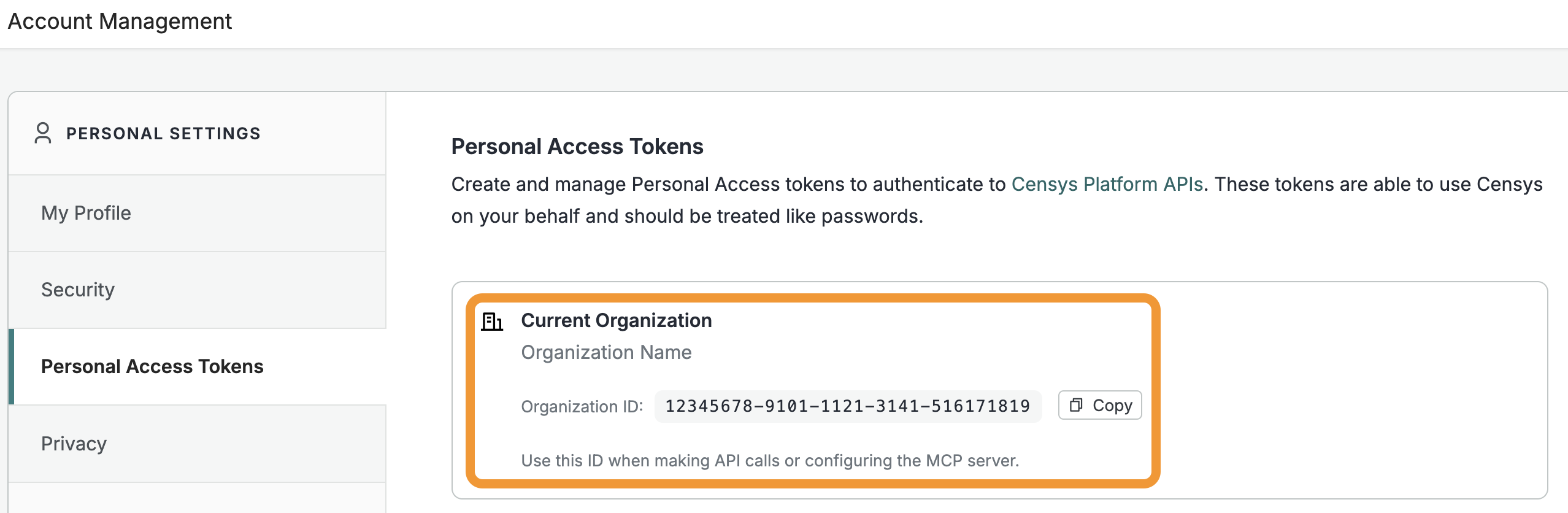
Your Censys Platform organization ID.
- To obtain your organization ID:
-
Open the Platform web console and ensure that your organization account is selected. Go to Settings > Account Management > Personal Access Tokens.
-
The ID for your organization is shown in the "Current Organization" box. Click Copy to copy it to your clipboard.
-
- To obtain your organization ID:
-
A Censys Platform Personal Access Token (PAT). Instructions on how to create and manage PATs are available in the API documentation.
Installation and configuration
- Navigate to the Splunkbase page for the Censys for Splunk SOAR app and download the app tarball file.
- Access your Splunk SOAR dashboard as a user with admin permissions. Open the navigation menu in the top left corner of the page and go to Automation > Apps.
- Click Install App and select the Censys Platform app tarball file you downloaded, then click Install.
- The Censys Platform app will appear on the Unconfigured Apps tab. On the entry for the app, click Configure New Asset.
- On the Asset name tab, enter a name for the app like "censys".
- Click Asset Settings.
- In the "Personal access token for authentication" field, enter your PAT.
- In the "Organization ID for the organization you would like to act as" field, enter your organization ID.
- Scroll down and click Save.
- Click Test Connectivity to verify that your setup was successful.
Supported actions
The Platform Splunk SOAR app adds the following actions. Note that the HTML views for the lookup actions contain a high-level preview of all of the results obtained from the lookup action. The JSON view contains all of the data fields that were returned by the lookup.
| Action | Description |
|---|---|
| lookup host | Retrieve host information using its IP address. You may input a time in ISO 8601 format to retrieve historical data. If you do not include a timestamp, the most recent scan data is retrieved. Information shown in the results preview includes host and service labels, DNS names, WHOIS information, ASN information, geographic location information, service and port information, service scan times, Censys-applied labels, vulnerabilities (if your organization is on the Censys Core plan) and threats (if your organization has access to the Adversary Investigation module). Check the JSON view for full results. |
| lookup cert | Retrieve certificate information using its SHA-256 fingerprint. Information shown in the results preview includes display name, subject DN, issuer DN, common names, and the validity period. Check the JSON view for full results. |
| lookup web property | Retrieve web property information using a hostname and port combination. You may input a time in ISO 8601 format to retrieve historical data. If you do not include a timestamp, the most recent scan data is retrieved. Information shown in the results preview includes labels, scan time, software, endpoints, certificate information, vulnerabilities (if your organization is on the Censys Core plan) and threats (if your organization has access to the Adversary Investigation module). Check the JSON view for full results. |
| search | Run a Platform search query. Search queries use the Censys Query Language (CenQL). The response from a search action is shown in JSON format in the SOAR UI. |
| find related infrastructure | Create a CensEye job for a host, web property, or certificate target and return related infrastructure pivot results. To use this action, your account must have access to the Adversary Investigation module. |
| get host event history | Retrieve scan history for a host. |
| get host service history | Retrieve historical service observations for a host. |
| live rescan | Initiate a rescan and wait for completion, then return a list of changes. |
| test connectivity | Test app connectivity. |
Use Censys actions in investigations
You can use run Censys actions in investigations on demand. To run a Censys action from the investigation UI, click Action and then select lookup host, lookup cert, lookup web property, or search and select your Censys Platform asset name. Input the pertinent information (such as an IP or query), then click Launch.
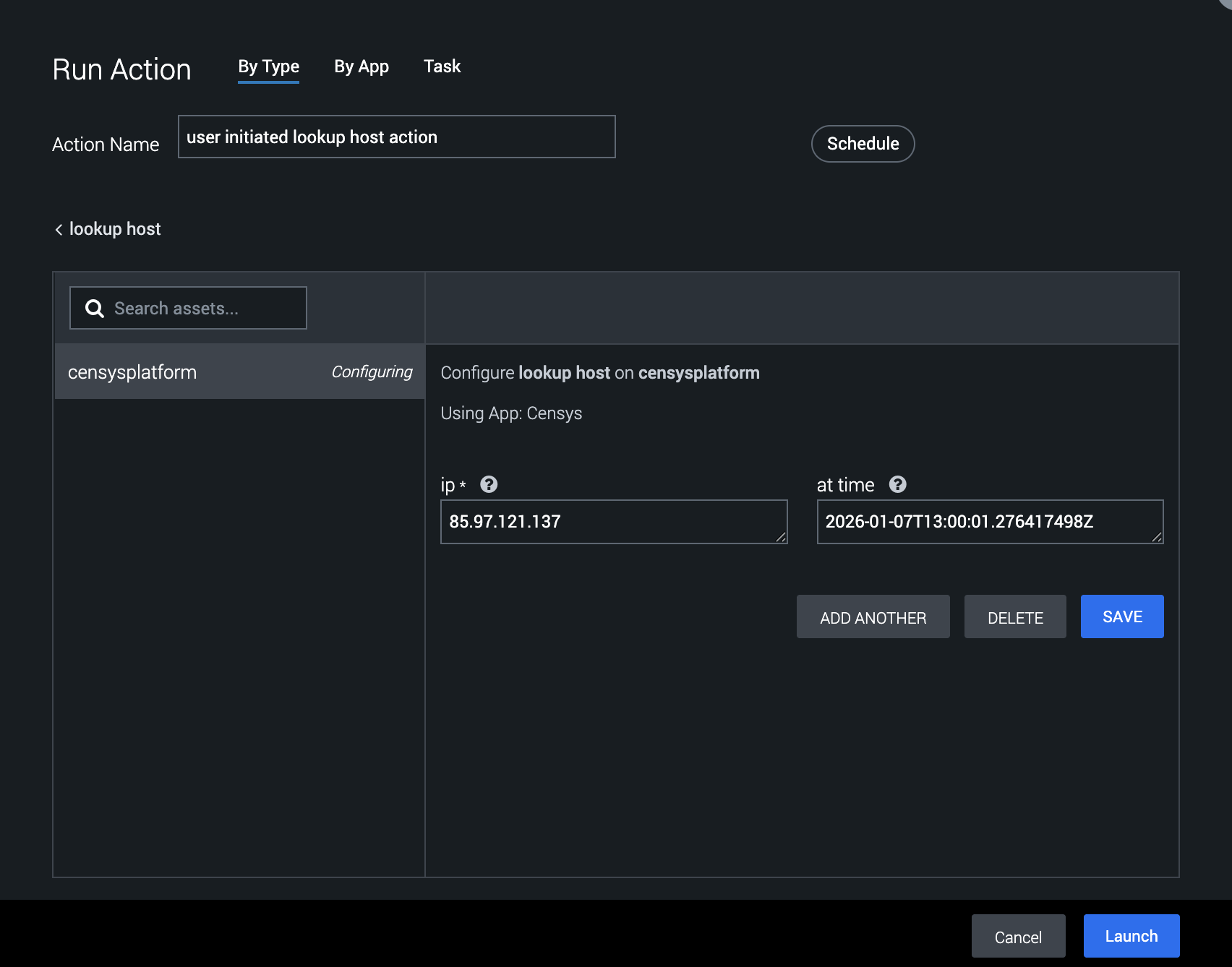
This image shows a user preparing to run the lookup host action on IP 85.97.121.137 at approximately 13:00 on January 7, 2026. If you do not include a value in the "at time" field, the most recent scan data will be retrieved.
For lookup actions, a templated version of the results will be displayed in the Widgets tab.
To see the complete list of data fields returned by a lookup, reference the JSON view of the results accessible from the Activity log on the left side of the page.
Add Censys actions to playbooks
You can add Censys actions to your automated security workflows in Splunk SOAR playbooks. You can configure playbook actions to execute Censys workflows by selecting them in the Action configuration menu.
For example, you can create a playbook to enrich any event with a destinationAddress artifact that is a public IPv4 address using the following workflow.
- In the Splunk SOAR dashboard, go to Automation > Playbooks.
- Click + Playbook. Select Automation.
- Create a filter that will make it so the following action will fire only if the
destinationAddressartifact is a non-RFC1918 address using amatches regexlike^(?!(10.|172.(1[6-9]|2[0-9]|3[0-1]).|192.168.))((25[0-5]|(2[0-4]|1\d|[1-9]|)\d).?\b){4}$. - Add a lookup host action from the Censys app. In the "ip" field, select your filtered
destinationAddressparameter. - Click Save and apply the playbook as desired.
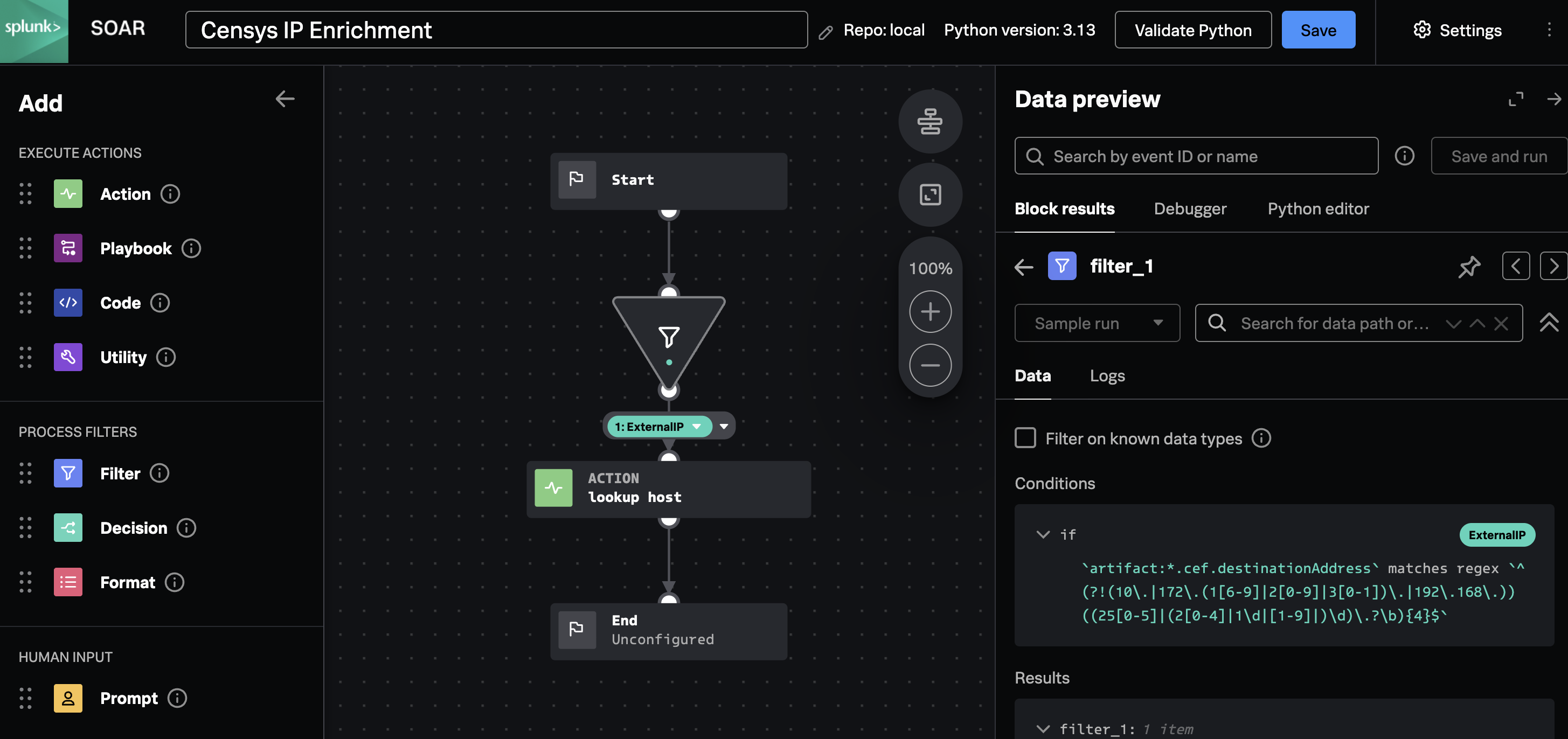
An example Splunk SOAR playbook configured to enrich IPs with Censys data.
Related infrastructure
NoteThis action is only available to Censys users with access to the Adversary Investigation module.
Use the related infrastructure action to discover and map internet-facing assets that share parsed Censys data key-value pairs. This action leverages the CensEye automated pivoting tool.
Each row of the output table is a Censys data key-value pair or group of key-value pairs and the count of assets in the Censys Internet Map that share that pair or group that you can investigate further on the Censys Platform.
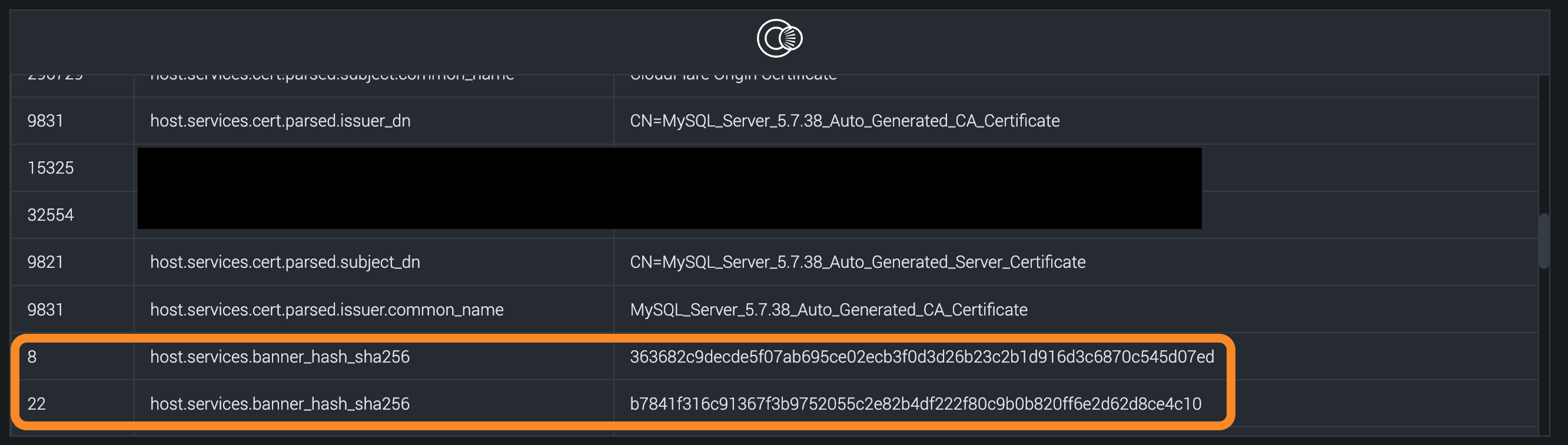
In the example screenshot shown above, the related infrastructure action shows that there are 8 other hosts with services that have the same banner hash as one of the services on the target host. Additionally, there are 22 other hosts that have the same banner hash as a different service on the host. You can use this information to find potentially related hosts for additional investigation, blocking, and so on.
Updated 15 days ago