
Tags and Comments
You can apply custom tags and comments to assets in the Censys Platform for categorization, reference, review, and many other purposes.
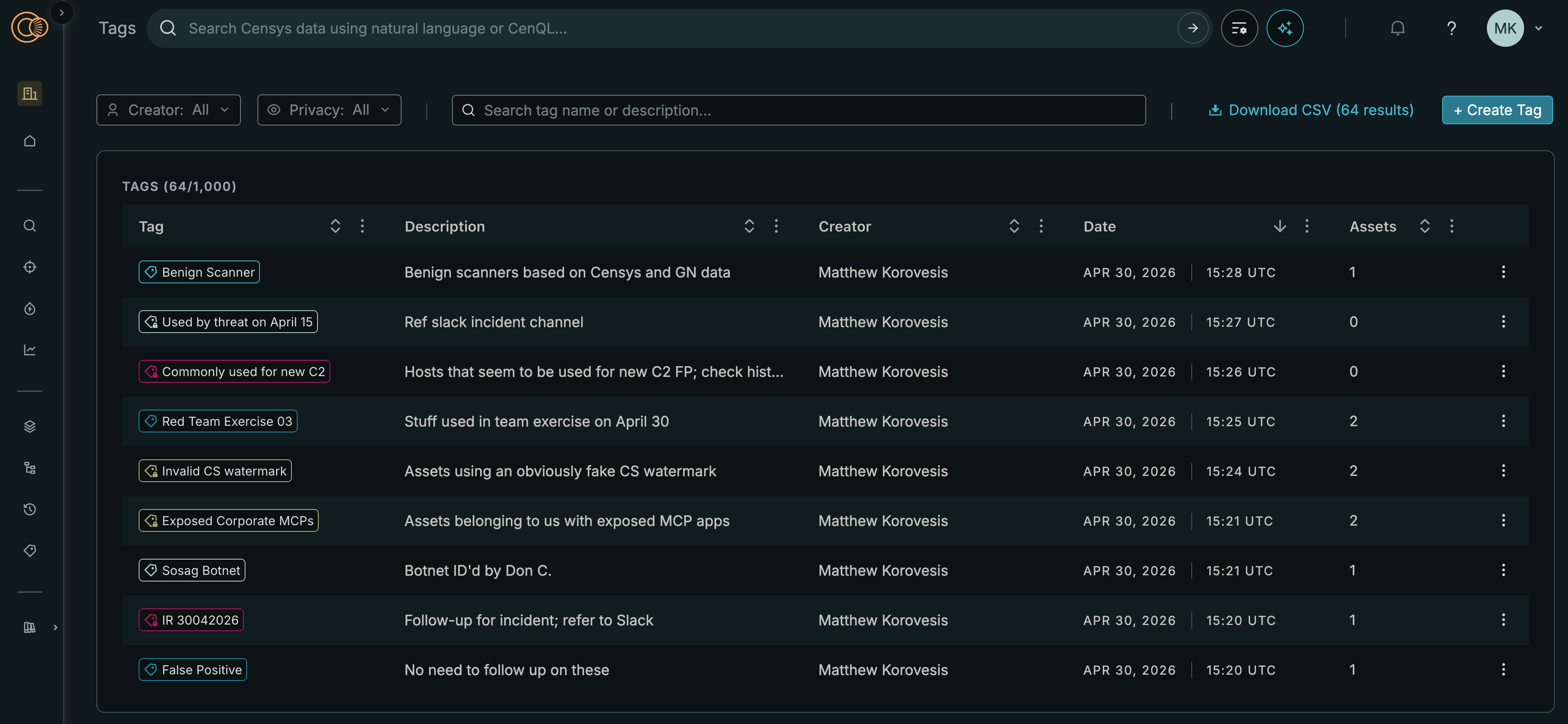
Tags and comments can be managed via the Platform web console. Tags can also be managed via the API.
You can include tag names and IDs in search queries for more effective investigations.
User plans - tag and comment limits
| Plan | Tags and comments limits |
|---|---|
| Censys Free | Tags and comments are not available to Censys Free users. |
| Censys Starter | Censys Starter users can create up to 3 tags and also add comments to assets. A single tag can be applied to 100,000 unique assets. |
| Enterprise | Enterprise users can create up to 1,000 tags and also add comments to assets. A single tag can be applied to 100,000 unique assets. |
Tags and comments in the Platform web console
In the Platform UI, the tags and total number of comments on an asset are shown above the summary section and on asset preview cards in search results.
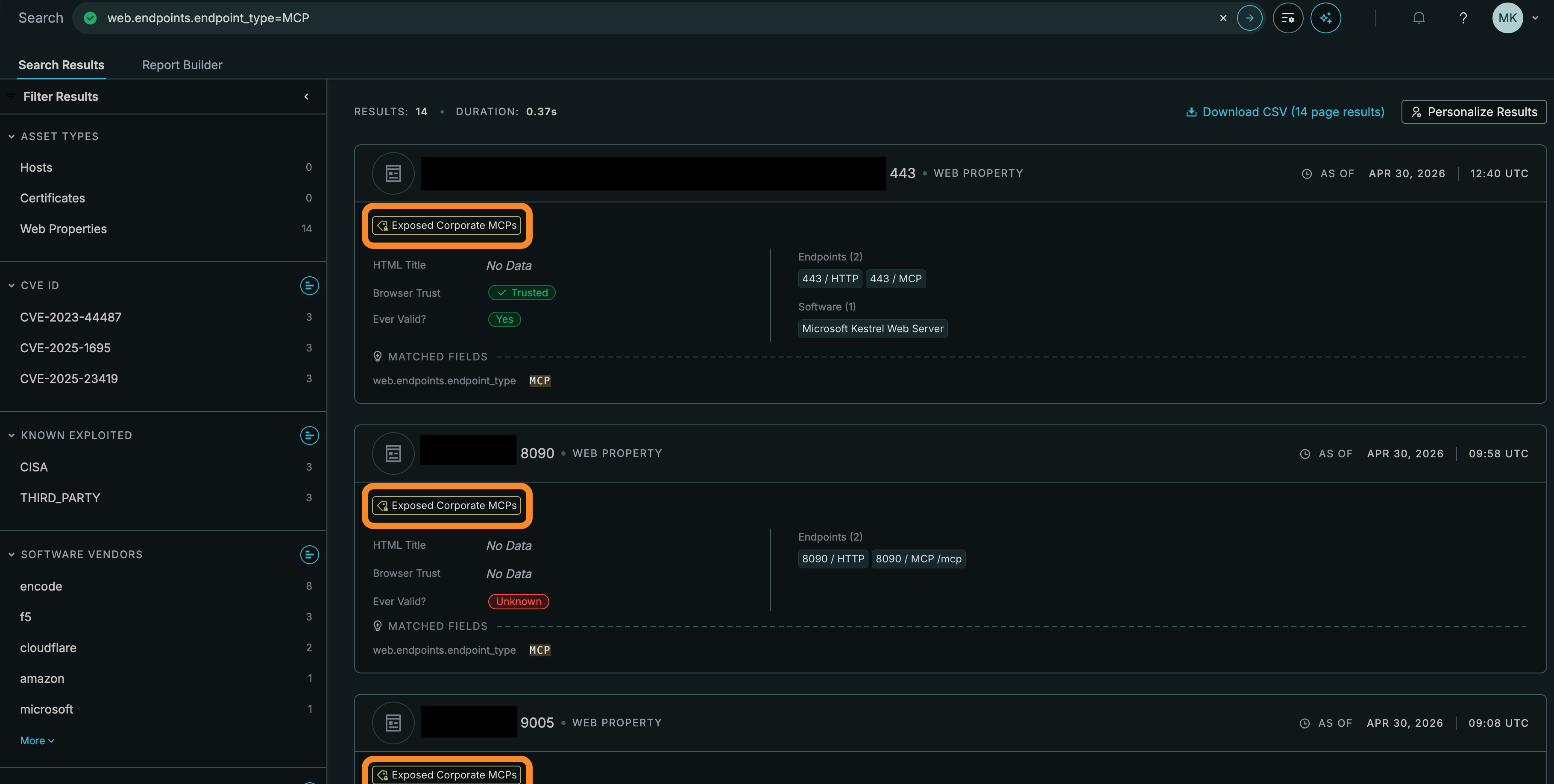
In addition, you can see and manage all tags visible to you on the Tags page in the Platform web console.
Tags and comments on asset pages
To add, remove, and view tags and comments on asset pages in the Platform web console, open the Actions Menu in the top right corner of the page.
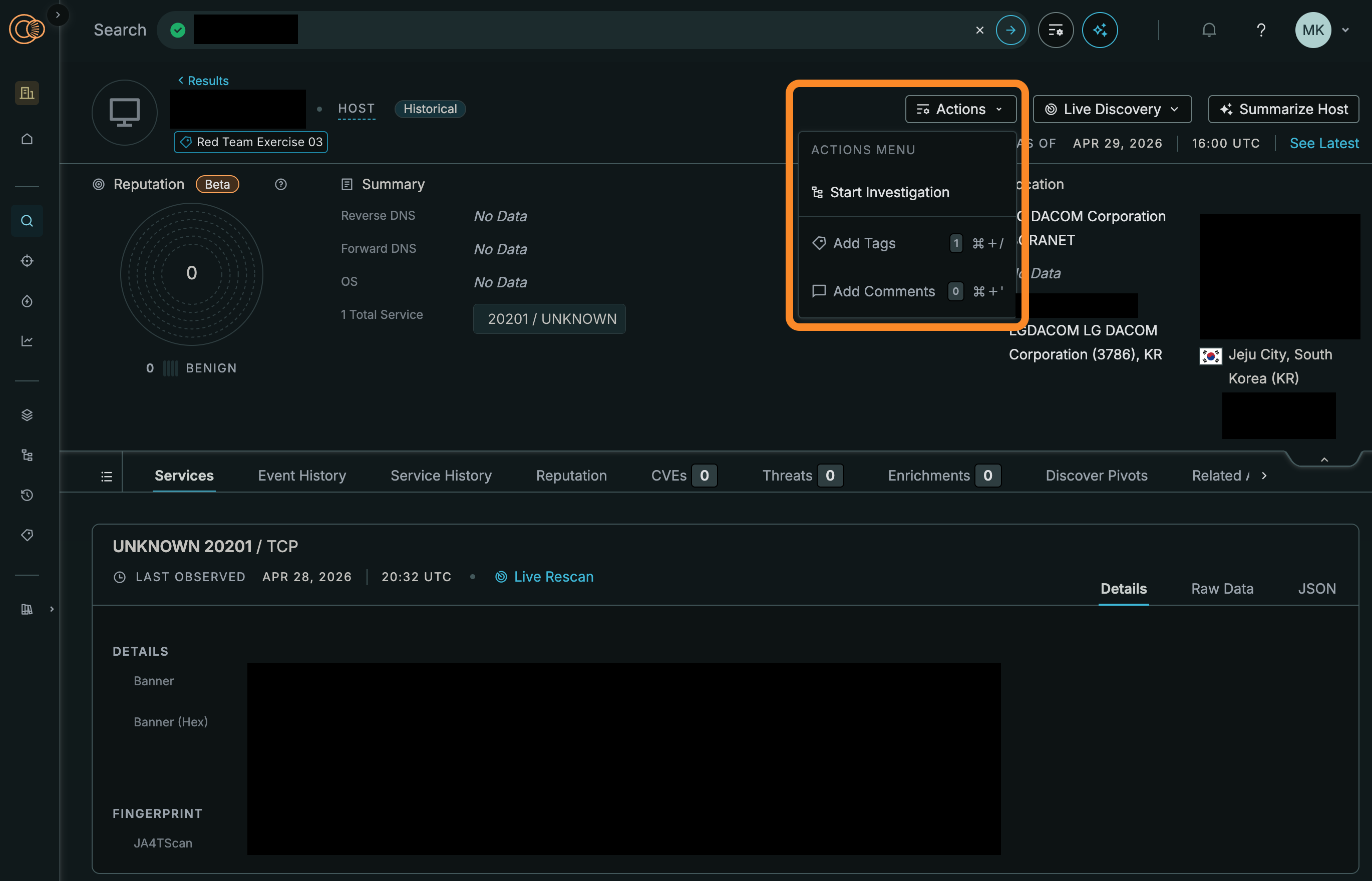
To add new tags or comments, click Add Tags or Add Comments.
To remove a tag, click Add Tags then click the X icon next to it.
Comments are visible to all members of your organization. To see comments on an asset, click Add Comments. To delete a comment, click the three-dot menu icon then click the trash can.
Tags page
To see all tags and comments for your organization, open the left-side navigation panel and select Tags.
On the Tags page, you can delete tags and edit tag names, descriptions, and colors. Click a tag name to see all of its assets. This runs a query that uses the tag ID and the tag name.
Tag names can be changed at any time. When you create a tag, it is assigned a unique ID that does not change. Use the tag ID to ensure that you target the same tag regardless of its display name.
Tag privacy settings
Tags can be shared or private.
- Shared: other members of your organization can see and edit the tag.
- Private: only you and organization admins can see and edit the tag.
Your organization's tags are only ever visible to members of your organization.
Tags in search queries
NoteAfter you create a new tag, it can take several minutes for it to propagate into the search index. You may have to wait a few moments after creation to search for a specific tag.
Use the tags fields to include tag values in your search queries. Tags have both a name (tags.name) that can be changed and a unique ID (tags.id) that never changes.
You can search across exact matches for tag names and IDs. Regardless of whether you use the : or = operator to target tag names, they are case-sensitive will only match on exact values.
For example, if you created a tag for false positives with the name False Positive and ID 1234, you could omit assets with that tag from your search results by writing a query like the following:
host.dns.names: "censys.com" and not tags.id=1234Manage tags via API
Use the endpoints shown in the API reference section to manage tags via the Platform API.
Bulk tag assignment
You cannot bulk assign or remove tags in the Platform web console. However, you can use the bulk create tag assignments API endpoint to assign tags to multiple assets via the API.
Updated about 2 months ago