
Google SecOps SOAR Integration
The Censys for Google SecOps SOAR integration adds the ability to:
- Automatically or manually enrich IPs, web properties, and certificates in Google SecOps with Censys Platform data.
- Initiate a Censys rescan of a host or web property.
- Retrieve scan history for an IP address.
- Initiate a CensEye automated pivoting job to find assets related to an IP, web property, or certificate.
Additionally, it adds prebuilt playbooks and a dashboard that shows all Censys actions executed using the app.
This guide walks through how to set up and use the Censys for Google SecOps application.
NoteMost of the Censys API calls used by this integration will deduct credits from your organization's balance. Reference the API documentation for more information on credit costs.
Prerequisites
-
A Google SecOps SOAR instance on version 6.3.75.0 or higher.
-
A Google SecOps admin role user with access to your instance.
-
Your Censys Platform organization ID.
- To obtain your organization ID:
-
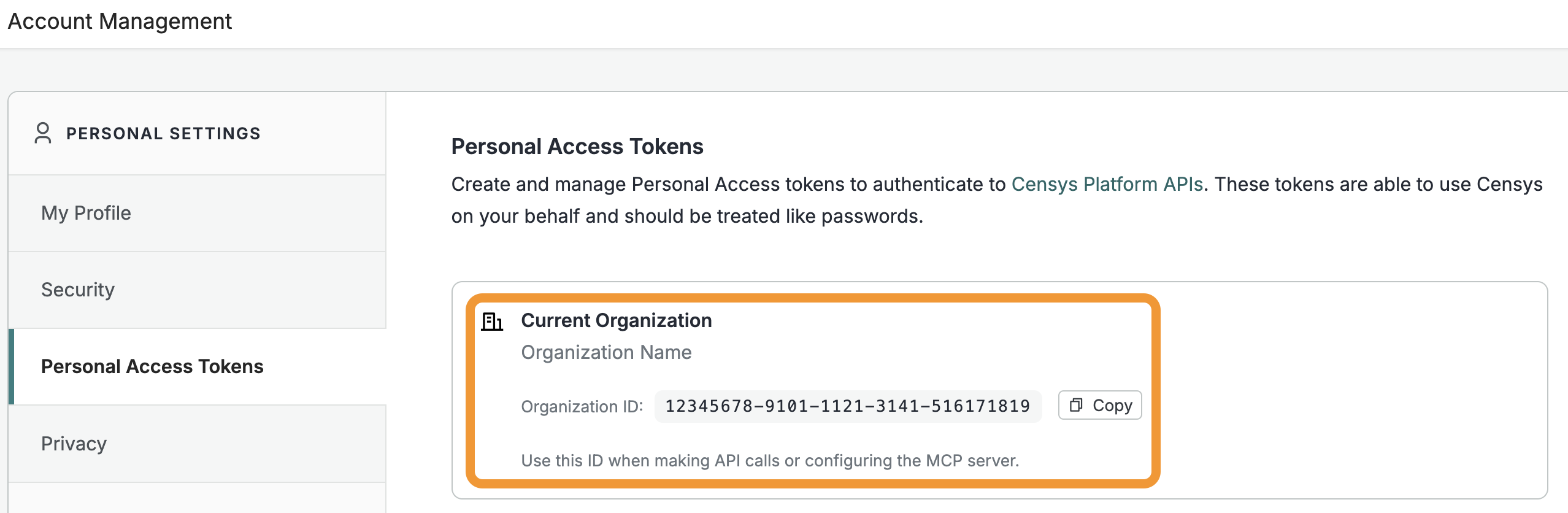
Open the Platform web console and ensure that your organization account is selected. Go to Settings > Account Management > Personal Access Tokens.
-
The ID for your organization is shown in the "Current Organization" box. Click Copy to copy it to your clipboard.
-
- To obtain your organization ID:
-
A Censys Platform Personal Access Token (PAT). Instructions on how to create and manage PATs are available in the API documentation.
NoteThis guide explains how to integrate the Censys Platform with Google SecOps SOAR. Censys also has an Attack Surface Management (ASM) integration with Google SecOps.
Installation and configuration
- Log in to the Google SecOps dashboard as a user with admin permissions. Open the left sidebar and go to Content Hub > Response Integrations. Search for "censys."
- On the Censys card, click Install.
- In the left sidebar, go to Response > Integrations Setup.
- Select the environment that you want to install the app in. Click the + button in the top right corner.
- Search for "censys" and select it. Click Save.
- In the "Censys - Configure Instance" window, enter a name and description.
- Under "Parameters," in the API Key field, enter your PAT.
- Under "Parameters," in the Organization Id field, enter your Censys organization ID.
- Click Save. Use the Test button to confirm that your credentials are valid.
Censys for Google SecOps SOAR actions
The Censys for Google SecOps SOAR integration adds the following actions.
| Action | Description |
|---|---|
| Test Connectivity (Ping) | Tests the connectivity of the Google SecOps SOAR server to the Censys Platform by validating the provided Censys API credentials and organization ID. |
| Enrich IPs | Retrieves comprehensive information about a host or hosts (IP addresses) using the Censys Platform API. Provides detailed intelligence about internet-facing infrastructure including services, ports, protocols, certificates, vulnerabilities, and location data. |
| Enrich Web Properties | Retrieves comprehensive information about web properties (domain/hostname with port) using the Censys Platform API. Provides detailed intelligence about web-facing assets including HTTP/HTTPS services, certificates, technologies, and security configurations. |
| Enrich Certificates | Retrieves comprehensive information about SSL/TLS certificates using the Censys Platform API. A certificate is identified by its SHA-256 fingerprint and provides detailed certificate intelligence including issuer, subject, validity periods, and associated hosts. |
| Initiate Rescan | Initiates a rescan for a known host service at a specific IP and port or hostname and port. Returns a scan ID that can be used to monitor the scan's status. |
| Get Rescan Status | Retrieves the current status of a scan by its ID asynchronously. Allows users to monitor the progress of previously initiated scans and determine when scan results are available. |
| Get Host History | Retrieves the scan history for a host (IP address). Allows users to view historical scan data, track infrastructure changes over time, and identify when services were added, removed, or modified. |
| Related Infrastructure | These actions use CensEye to discover related infrastructure for a given target (host, web property, or certificate). This action is only available to users with access to the Adversary Investigation module. Learn more in the related infrastructure section below. |
Censys for Google SecOps SOAR playbooks
This integration adds the following prebuilt playbooks to Google SecOps that you can customize for your needs.
| Playbook | Description |
|---|---|
| Censys - Entity Enrichment | Enriches IP addresses, web properties, or certificates. |
| Censys - Rescan | Initiates a rescan of a host service or web property. |
| Censys - Host History | Retrieves the Censys scan history for an IP address. |
| Censys - Related Infrastructure | Uses CensEye to discover related infrastructure for a given target (host, web property, or certificate). This action is only available to users with access to the Adversary Investigation module. |
To add the playbooks to your environment:
- In the Google SecOps console, go to Content Hub > Playbooks & Blocks. Search for "censys".
- Next to the entry for the playbook you want to use, click Add.
- On the window that appears, select the environment you want to use it in. Click Save.
The playbook will now be available in your Content Hub Playbooks folder.
Each playbook requires a trigger, which decides when the playbook runs. You can update the trigger conditions based on your requirements.
As the trigger of every playbook is set to run on all alerts ingested into SecOps, newly-added Censys playbooks are disabled by default. Before using any playbook with an alert, review its default settings (triggers, action parameters, and so on) to ensure they align with your needs
You can enable any playbook by clicking the toggle button beside the playbook name.
Manually run Censys for Google SecOps SOAR actions on a case
To manually run a Censys action on a case:
-
Open the case in Google SecOps.
-
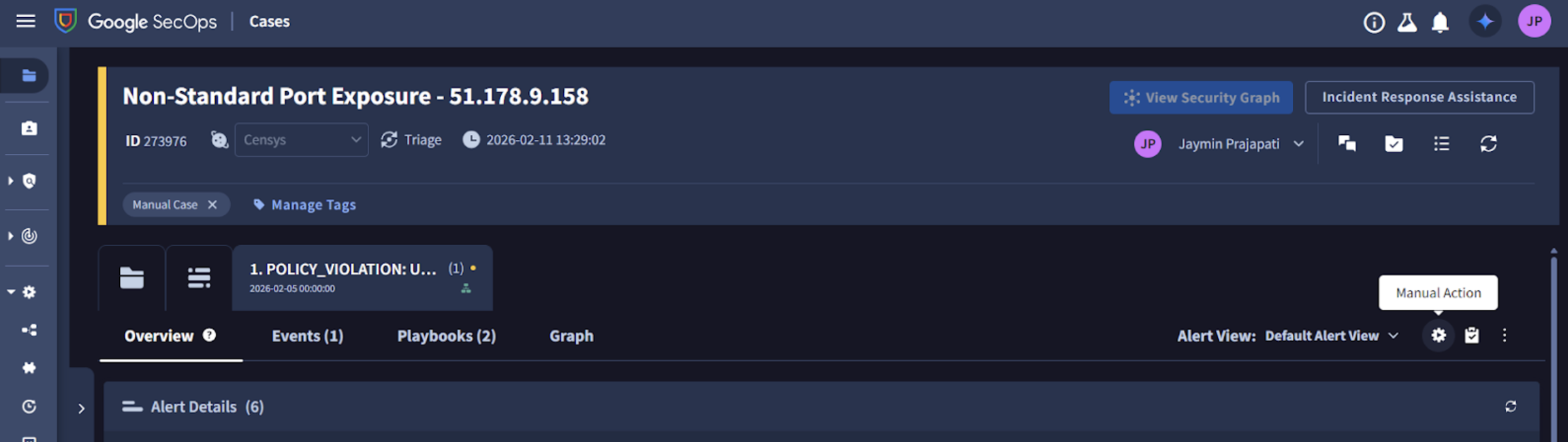
On the "Overview" tab, on the right side of the page, click the Manual Action gear icon.
-
Select the Censys action you want to run, input the necessary information, and click Execute.
-
After the action is executed, the result is displayed on the case wall.
Add Censys actions to Google SecOps playbooks
Censys actions can be added as actions to playbooks. To add a Censys action to a playbook:
- In the Google SecOps console, open the left sidebar and navigate to Response > Playbooks. Select any existing playbook or create a new one.
- Click + Open Step Selection and go to the Actions tab.
- All Censys app actions are listed under "Censys integration." Drag and drop the desired action to the playbook step.
- Configure the input parameters (if applicable) for the action.
Related infrastructure actions and playbook
NoteThese actions and the playbook are only available to Censys users with access to the Adversary Investigation module.
Use the related infrastructure actions and playbook to discover and map internet-facing assets that share parsed Censys data key-value pairs. The actions and playbook leverage the CensEye automated pivoting tool.
There are three related infrastructure actions you can execute manually:
- Create Related Infrastructure Job: Initiates a CensEye job for IP addresses, domains, or certificates and returns a job ID.
- Get Related Infrastructure Job Status: Polls the job status using the job ID to determine when analysis is complete. This action is called in a loop with configurable wait intervals.
- Get Related Infrastructure Results: Retrieves the complete pivot results from the completed job, formats them into a table with search URLs, and provides JSON output for further analysis.
Each row of the output table is a Censys data key-value pair or group of key-value pairs, the count of assets in the Censys Internet Map that share that pair or group, and a link to see all assets that feature the pair in the Censys Platform.
The related infrastructure playbook executes all three related infrastructure actions sequentially, but you must input IP address, domain, or certificate parameters to start it.
Enable and use the Censys for Google SecOps dashboard
The dashboard included with the Google SecOps app displays a count of events enriched with Censys data manually and automatically. It is useful for auditing and examining usage history.
To enable and use the dashboard:
- Retrieve the dashboard JSON file from the Censys for Google SecOps Git repo.
- In Google SecOps, open the left sidebar and go to Dashboards & Reports > Dashboards.
- Click New dashboard, then select Import from JSON.
- Click Upload dashboard files. Find and select the "Censys SOAR Dashboard" file.
- Click Import.
- To locate the dashboard in Google SecOps, go to Dashboards & Reports > Dashboards and select Censys SOAR Dashboard.
The dashboard shows the total count of Censys actions executed in playbooks manually or automatically, the most popular Censys actions used, and more information.
Updated 28 days ago