
S1 with enrichment config
The Censys for SentinelOne Singularity Operations Center integration adds the ability to:
- Automatically or manually enrich IPs, web properties, and certificates in SentinelOne with Censys Platform data.
- Initiate a Censys rescan of a host or web property.
- Retrieve scan history for an IP address.
- Initiate a CensEye automated pivoting job to find assets related to an IP, web property, or certificate.
These actions can be executed using five pre-built Hyperautomation workflows.
This guide walks through how to set up and use the Censys for SentinelOne application.
NoteMost of the Censys API calls used by this integration will deduct credits from your organization's balance. Reference the API documentation for more information on credit costs.
Prerequisites
-
SentinelOne Singularity Operations Center version S-26.1.6.134 or a higher active GA version that supports Hyperautomation workflows and integrations.
-
To configure and manage the integration in SentinelOne, you must have a SentinelOne user with the following minimum permissions.
- View and Edit permissions for Hyperautomation.
- Run, Stop, Export, and Delete workflow permissions.
-
Your Censys Platform organization ID.
- To obtain your organization ID:
-
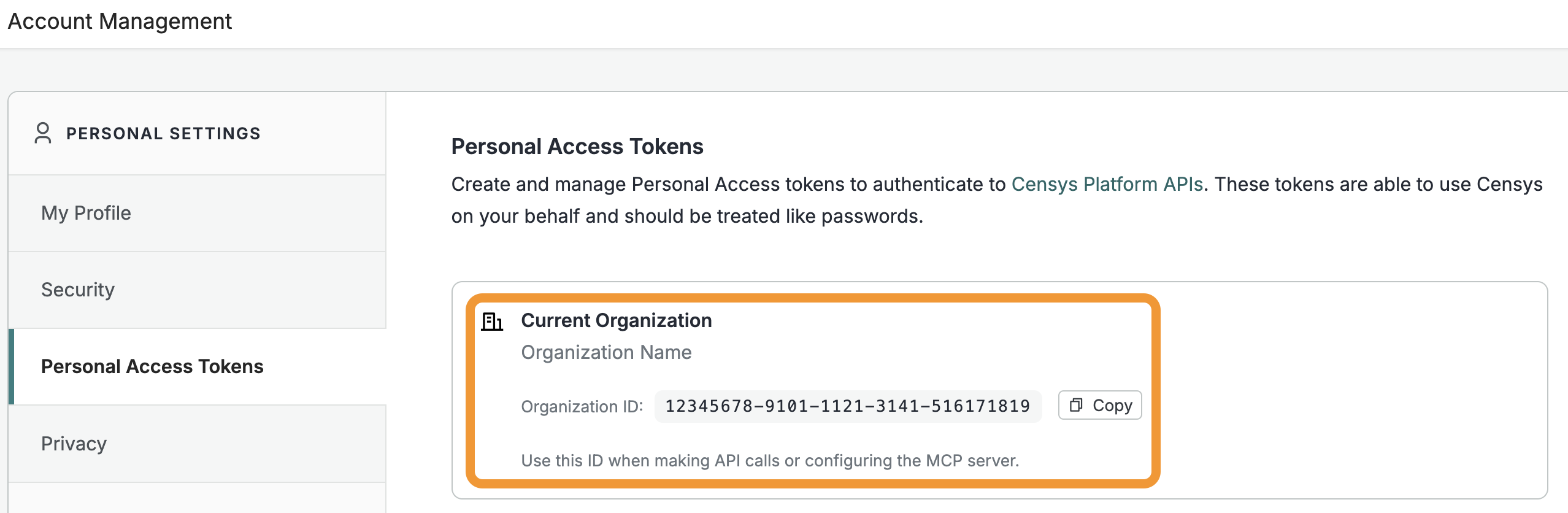
Open the Platform web console and ensure that your organization account is selected. Go to Settings > Account Management > Personal Access Tokens.
-
The ID for your organization is shown in the "Current Organization" box. Click Copy to copy it to your clipboard.
-
- To obtain your organization ID:
-
A Censys Platform Personal Access Token (PAT). Instructions on how to create and manage PATs are available in the API documentation.
Installation and configuration
To set up the Censys integration, you must add the Censys integration connection, create global variables for the integration to use your organization ID in all API calls and optionally to use the host enrichment API, create a SentinelOne connection for adding notes to alerts, and create a SentinelOne SIEM HTTP Event Collector (HEC) connection to ingest Censys data into the Singularity Data Lake (SDL).
After you set up the integration's connections, you must configure the workflows to use your new connections. See the Workflow configuration section below this for more information.
1. Add the Censys connection to SentinelOne
- Access your SentinelOne dashboard as a user with permissions described above. Go to Hyperautomation > Integrations.
- Search for "Censys". Select the Censys card and click Add Connection.
- On the "Create Connection" page, under "Authentication," enter your Censys PAT in the "API Key" field.
- Leave all other options at their default settings and click Create Connection.
2. Create global variables for the Censys integration
- On the Integrations page, select Variables. Click Create New.
- In the "Name" field, enter
Censys-Org-Id. Note that this name value is case sensitive. - In the "Value" field, paste your Censys organization ID.
- Click Create.
Optional: configure host enrichment API global variable
You may also configure a global variable to use the host enrichment API endpoint instead of the get host API endpoint when retrieving information about hosts. The host enrichment API returns a curated set of host IPv4 or IPv6 data designed specifically for high-volume, automated lookups in SOC environments.
If you do not configure this global variable, then the integration workflows will use the get host API.
To use the host enrichment API, your organization must be on the Core plan. The host enrichment API does not cost credits to use. Core organizations are limited to 20,000 host enrichment calls per day. Core + Unlimited Enrichment organizations may perform an unlimited number of host enrichment API calls.
If you configure this variable, then the SentinelOne workflows will call this endpoint by default when enriching hosts. If you hit your limit, then it will fall back to the get host endpoint.
To configure the host enrichment API variable:
- On the Integrations page, select Variables. Click Create New.
- In the "Name" field, enter
Censys-Use-Host-Enrichment-API. Note that this name value is case-sensitive. - In the "Value" field, enter
true. - Click Create.
3. Create SentinelOne connection for adding notes to alerts
- Go to Hyperautomation > Integrations.
- Search for "SentinelOne." Select the SentinelOne card and click Add Connection.
- On the "Create Connection" page:
- In the "Connection Name" field, enter a name like "SentinelOne."
- Under "Network," in the "URL" field, enter your SentinelOne management console URL.
- Under "Authentication," in the "API Token" field, enter a SentinelOne API token with permission to read and update alerts.
- To create an API token for a user, go to User Management > Console Users or User Management > Service Users. Select the user you want to create a token for, then click Actions > API token operations > Generate API token.
- Click Create Connection.
4. Create SentinelOne SIEM HEC connection to ingest Censys data into SDL
- Go to Hyperautomation > Integrations.
- Search for "SentinelOne SDL." Select the SentinelOne SDL card and click Add Connection.
- On the "Create Connection" page:
- In the "Connection Name" field, enter a name like "SentinelOne SDL."
- Under "Network," in the "URL" field, enter your HEC ingest URL, like
https://ingest.us1.sentinelone.net. - Under "Authentication," in the "API Token" field, enter your SIEM write token.
- Click Create Connection.
Workflows and actions
The Censys for SentinelOne integration includes the following workflows.
| Workflow | Description |
|---|---|
| Censys Alert Enrichment | Automatically enriches alerts with Censys intelligence for IP addresses, web properties, and certificate hashes found in alert indicators, ingests the raw data into the Singularity Data Lake, and appends a formatted summary note to the alert. |
| Censys Alert Enrichment (Manual) | Manually enriches an alert with Censys intelligence for a specified IP address, web property, or certificate hash, ingests the raw data into the Singularity Data Lake, and optionally appends a formatted enrichment note to the alert. |
| Censys Host History Enrichment | Manually retrieves the historical scan timeline for a specified IP address from Censys, ingests each scan event into the Singularity Data Lake, and optionally appends a formatted host history summary as a note to an alert. |
| Censys Rescan | Manually triggers a rescan of a service or web property in Censys, polls for scan completion, fetches the updated asset data, ingests the results into the Singularity Data Lake, and optionally appends a formatted enrichment note to a SentinelOne alert. |
| Censys Related Infrastructure | Manually initiates a CensEye job for a specified IP address, web property, or certificate to discover assets that return specific key-value attributes, ingests the job results into the Singularity Data Lake, and optionally appends a formatted summary of findings to an alert. This workflow is only available to users with access to the Adversary Investigation module. |
The integration also adds the following actions. Many of these actions are included in the pre-built workflows.
| Action | Description |
|---|---|
| Get Host | Retrieves current scan data and open service information for a given host. |
| Get Host Enrichment | Retrieves host data using the host enrichment API, a lightweight API purpose-built to help security teams operationalize external internet data without the friction of traditional credit consumption. |
| Get Web Property | Retrieves current scan data for a given web property. |
| Get Certificate | Retrieves details and metadata for a TLS/SSL certificate identified by its SHA256 hash. |
| Get Host History | Retrieves the historical scan timeline for a given IP address within a specified date range, showing how the host's exposed services have changed over time. |
| Initiate Live Rescan | Triggers a live rescan of a specific service (IP + port + protocol) or web property in Censys, returning a scan ID to track progress. |
| Get Scan Status | Checks the current status of a live rescan using the scan ID returned by Initiate Live Rescan. |
| Create CensEye Analysis Job | Starts a pivot-based threat hunting job for a given host, web property, or certificate, returning a job ID to track progress. |
| Get CensEye Job Status | Checks whether the analysis job is still running, completed, or has timed out. |
| Get CensEye Job Result | Retrieves the paginated results of a completed analysis job, listing related assets grouped by shared attribute values. |
Workflow configuration
Use the following steps to add connections to your workflows and activate them. You must configure any step in a workflow that makes a Censys API call to use the connections you created above.
To add connections to a workflow:
-
Go to Hyperautomation > Workflows.
-
Open the workflow you want to edit.
-
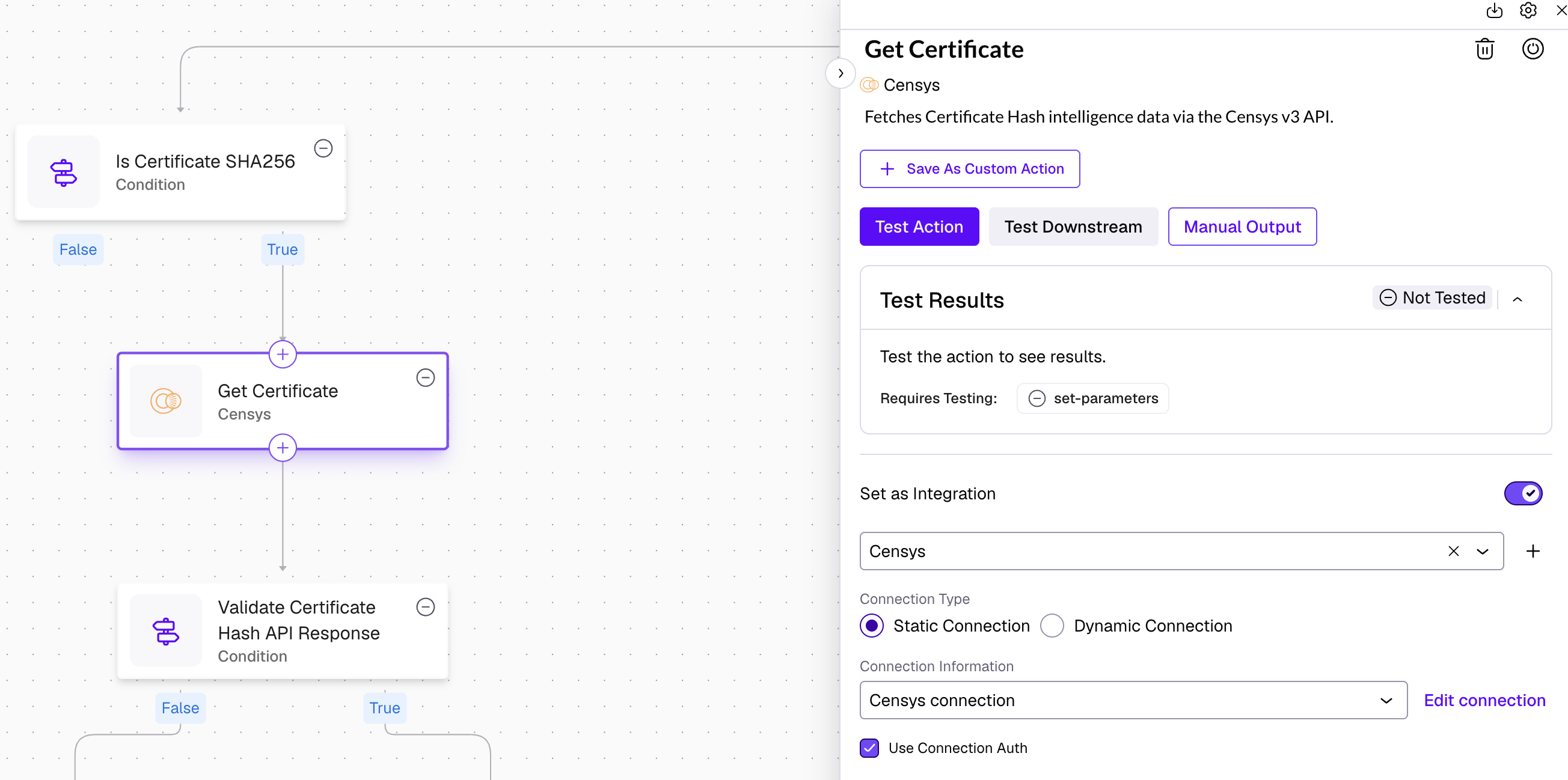
Click on any step that makes a Censys API call (such as Get Host, Get Certificate, Get Web Property, Initiate Live Rescan, and Get Host History).
-
In the step's settings panel, set the Set as Integration toggle to On.
-
In the dropdown beneath "Set as Integration," select Censys.
-
In the "Connection Information" section, select the Censys connection you created during the "Add the Censys connection to SentinelOne" part of the setup process.
- Repeat this for all steps that call the Censys API.
-
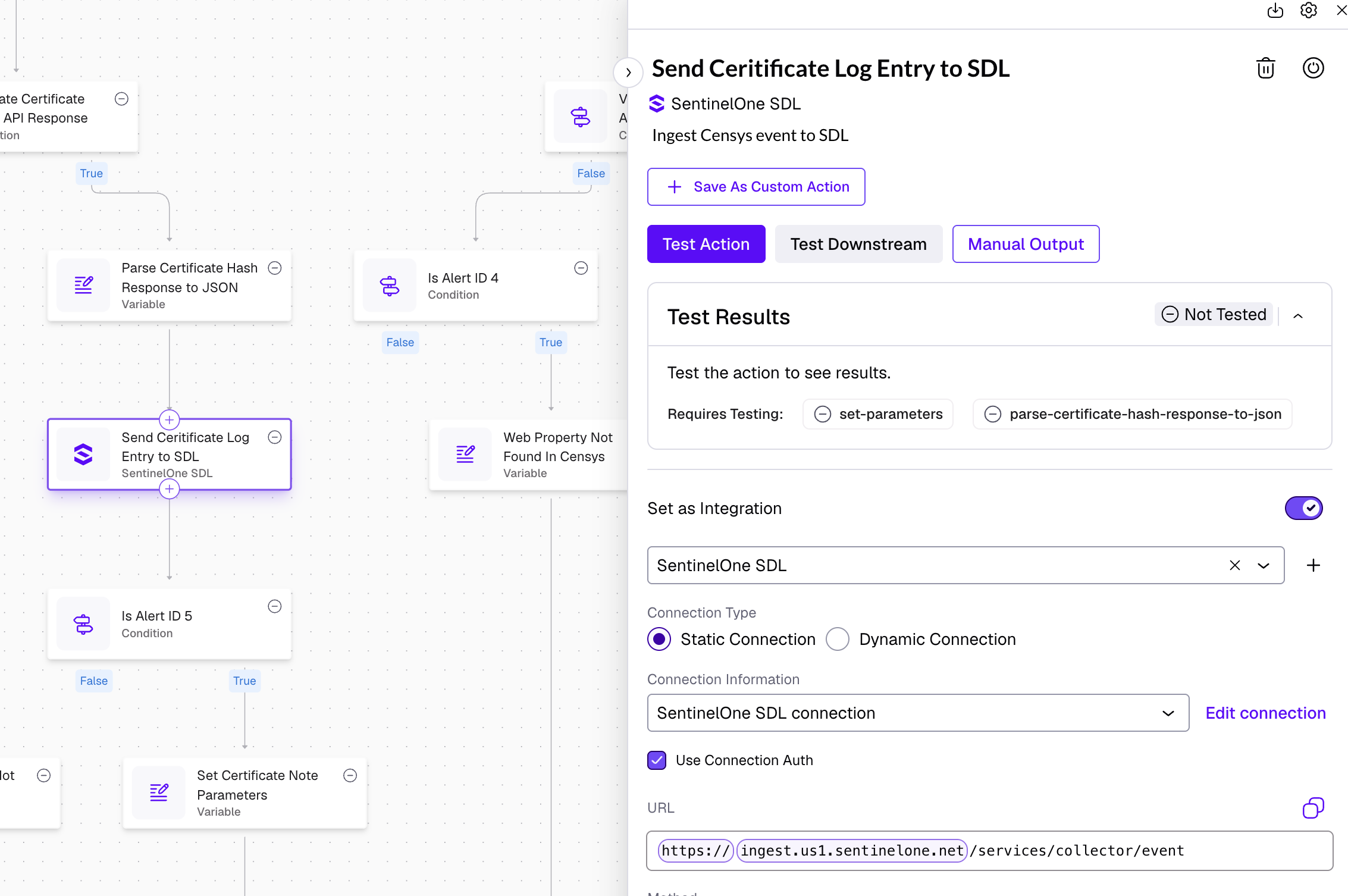
Click on any step that sends data to the SDL (such as Send Certificate Log Entry to SDL, Send Host Log Entry to SDL, Send Host History to SDL, and Send Host Enrichment Data to SDL).
-
In the step's settings panel, set the Set as Integration toggle to On.
-
In the dropdown beneath "Set as Integration," select SentinelOne SDL.
-
In the dropdown beneath "Set as Integration," select the SentinelOne SDL connection you created during the "Create SentinelOne SIEM HEC connection to ingest Censys data into SDL" part of the setup process.
- Repeat this for all steps that send data to SDL.
-
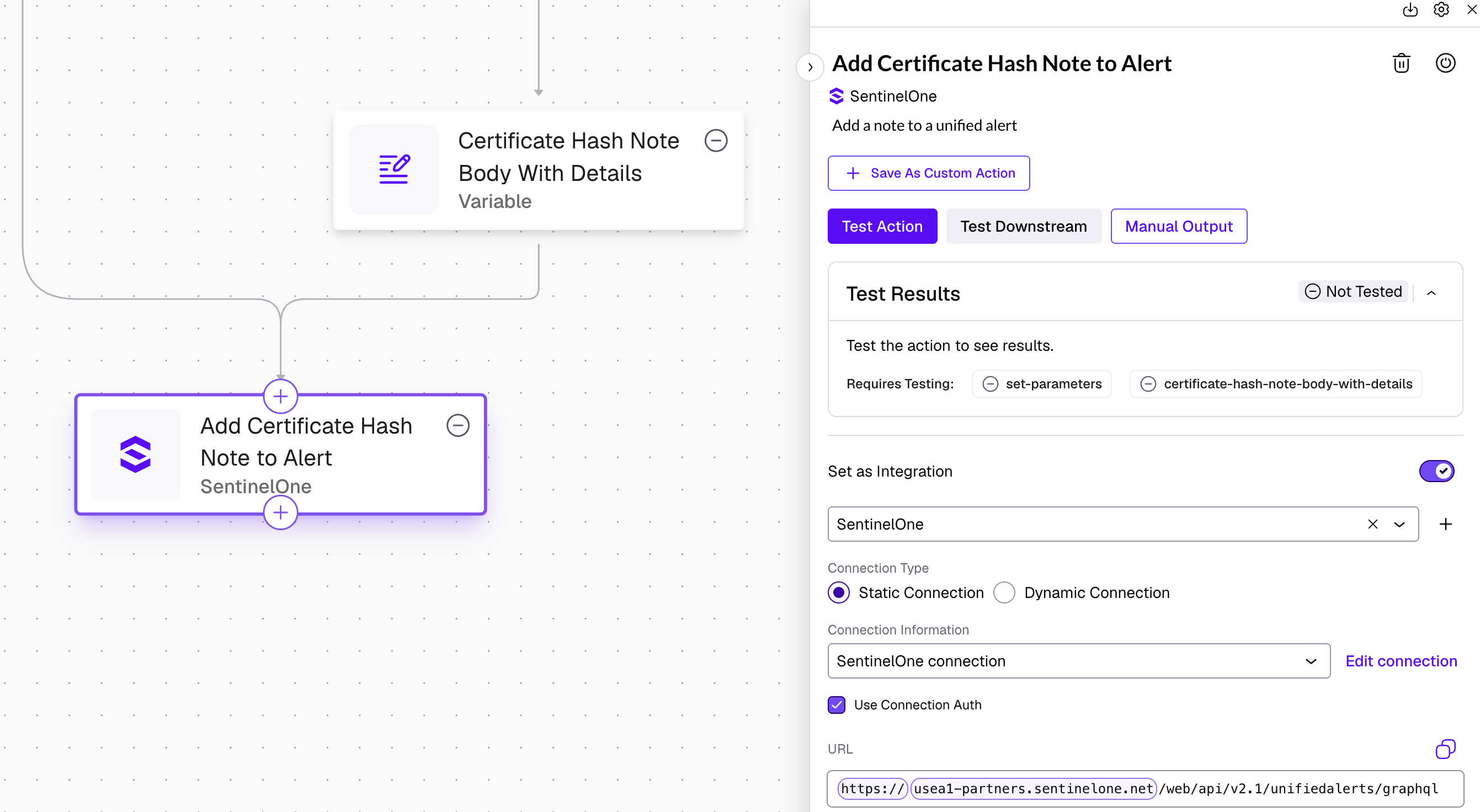
Click on any step that adds a note to an alert (such as Add Certificate Hash Note to Alert).
-
In the step's settings panel, set the Set as Integration toggle to On.
-
In the dropdown beneath "Set as Integration," select SentinelOne.
-
In the dropdown beneath "Set as Integration," select the SentinelOne connection you created during the "Create SentinelOne connection for adding notes to alerts" part of the setup process.
- Repeat this for all steps that add notes to alerts.
-
After configuring each step, click Activate.
How to use Censys for SentinelOne workflows
Censys Alert Enrichment
This workflow runs automatically. No manual action is needed. Whenever a MEDIUM, HIGH, or CRITICAL alert is created in SentinelOne, the workflow triggers and enriches it with Censys data.
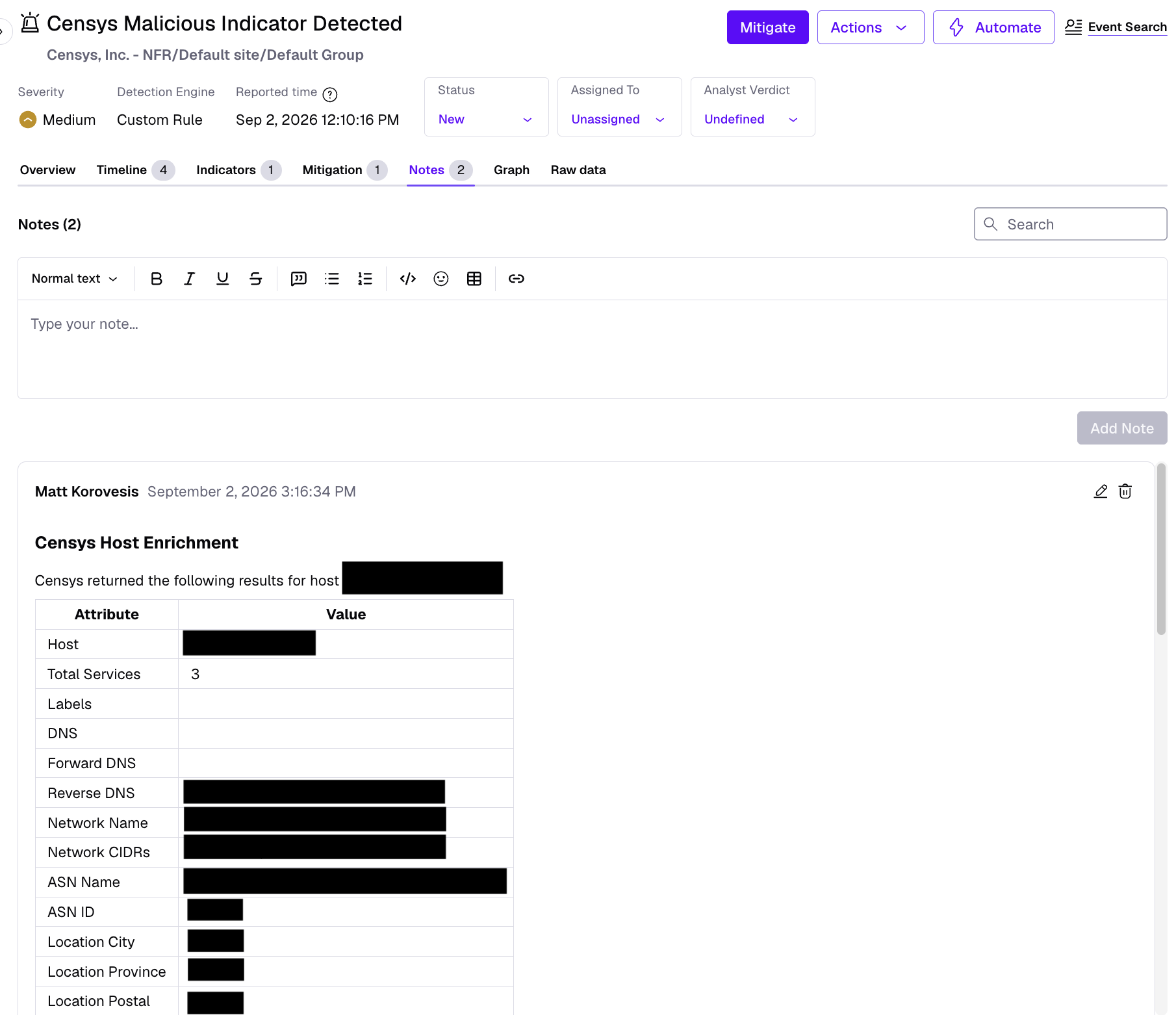
A note containing Censys host enrichment added to a SentinelOne alert.
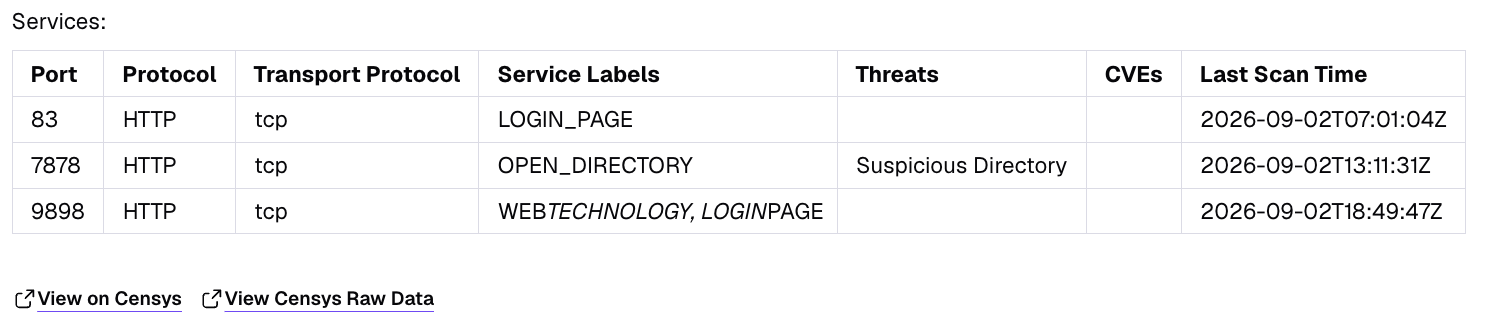
Service data for a host enriched with Censys data.
Censys Alert Enrichment (Manual)
- Open the workflow and click Execute.
- Fill in the prompt fields:
- Alert ID (optional): the SentinelOne alert ID to attach the enrichment note to.
- Host (optional): IP address of the host to look up (such as
8.8.8.8). - Web Property (optional): Hostname and port pair of the web property to look up (such as
example.com:443). - Certificate (optional): Certificate SHA256 hash to look up.
- Click Run.
Censys Host History Enrichment
- Open the workflow and click Execute.
- Fill in the prompt fields:
- Alert ID (optional): the SentinelOne alert ID to attach the enrichment note to.
- Host: IP address of the host to look up.
- Start time: history start date in the format
YYYY-MM-DDTHH:MM:SSZ(for example,2024-01-01T00:00:00Z). - End time: history end date in the same format.
- Click Run.
Censys Rescan
- Open the workflow and click Execute.
- Fill in the prompt fields:
- Alert ID (optional): the SentinelOne alert ID to attach the findings to.
- Scan Type: enter
Sto scan a host service (IP, port, and protocol), orWPto scan a web property (hostname and port). - Host: IP address or hostname (for example
8.8.8.8orwww.example.com). - Port: Port number.
- Protocol: The protocol of the target service (required for service scans), such as
HTTP. - Transport protocol: The transport protocl of the target service (required for Service scans), such as
tcp.
- Click Run. The workflow will poll Censys for scan completion (up to 10 minutes) and then ingest the results.
Censys Related Infrastructure
- Open the workflow and click Execute.
- Fill in the prompt fields:
- Alert ID (optional): the SentinelOne alert ID to attach the findings note to.
- Host IP (optional): Host IP address to pivot from.
- Web Property (optional): Web property to pivot from.
- Certificate (optional): Certificate SHA256 hash to pivot from.
- Click Run. The workflow will poll Censys until the threat hunting job completes (up to 10 minutes), then ingest the results.
Data written to the SDL
All workflows ingest Censys raw data into the Singularity Data Lake under the following source metadata:
| Censys Action or Workflow | dataSource.vendor | dataSource.category | source |
|---|---|---|---|
| Host enrichment | Censys | HostEnrichment | Censys.HostEnrichment |
| Web property enrichment | Censys | WebPropertyEnrichment | Censys.WebPropertyEnrichment |
| Certificate enrichment | Censys | CertificateEnrichment | Censys.CertificateEnrichment |
| Host history enrichment | Censys | HostHistoryEnrichment | Censys.HostHistoryEnrichment |
| Rescan | Censys | Rescan | Censys.Rescan |
| Related infrastructure | Censys | RelatedInfrastructure | Censys.RelatedInfrastructure |
You can query this data in the SDL using a filter such as:
dataSource.vendor='Censys' dataSource.category='HostEnrichment'Updated 32 minutes ago